Collaborative AI
Refine a design
Explore Circle One’s key design features, intuitive, interactive and easy to use.
Guide

Design step by step

Learn how to design your prosthesis step by step
Start
Learn how to design step by step
Video
Occlusal Alignment
Select the occlusion captured by your intraoral scanner or the one provided by Circle One.
Learn more
Video
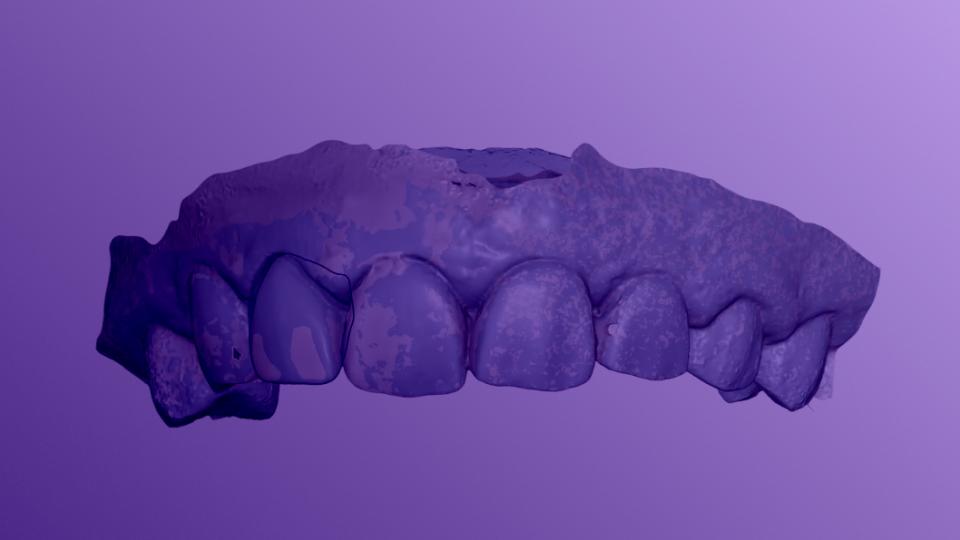
Teeth Identification
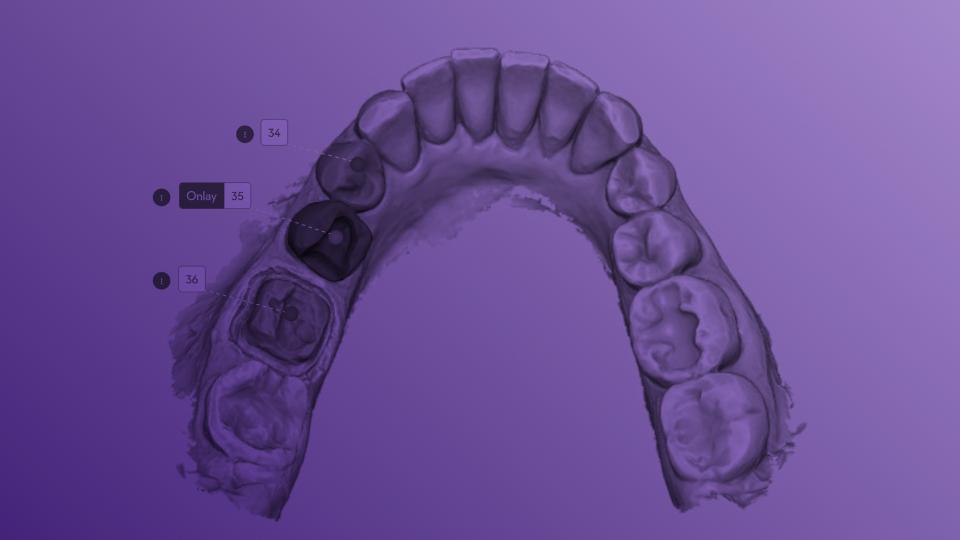
This step allows you to check the automatic teeth identification performed by Circle One.
Learn more
Video
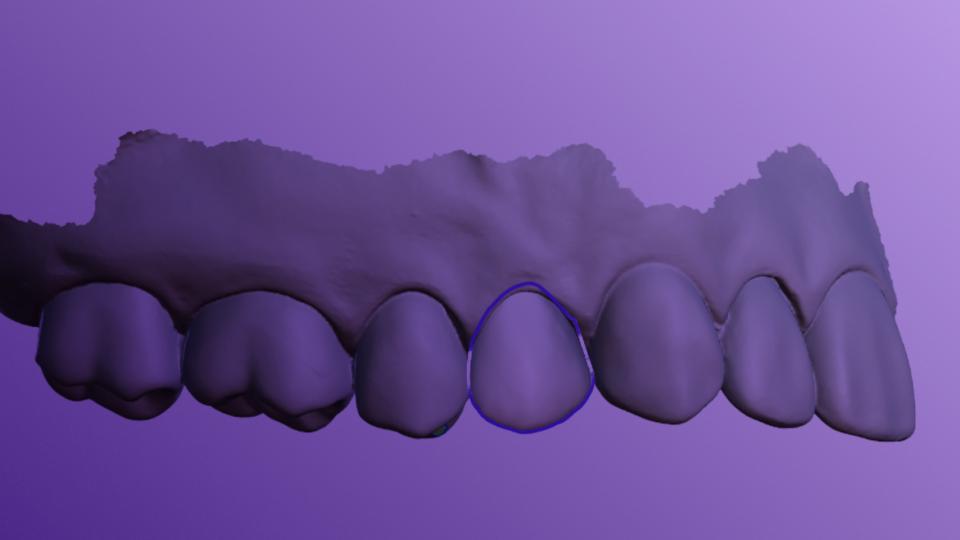
Margin Line
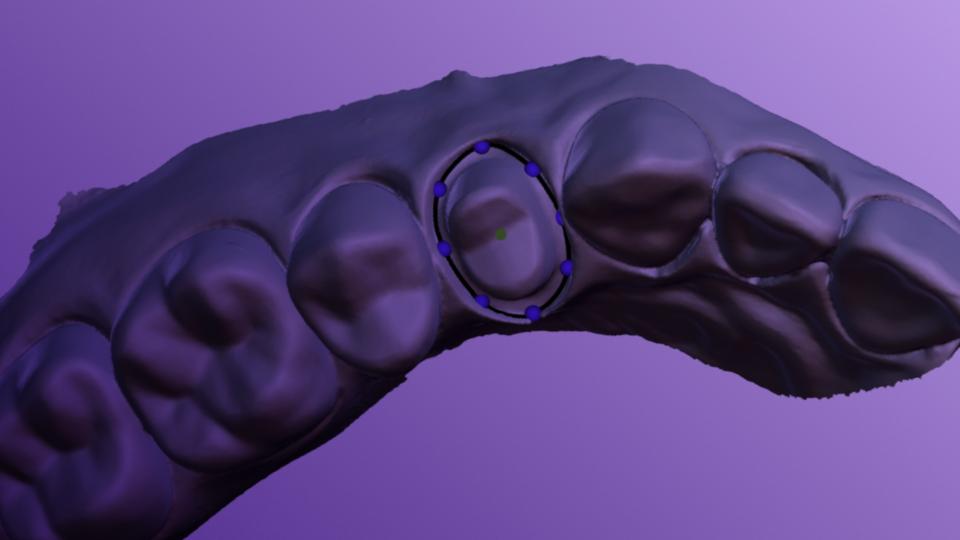
Control the margin line and the insertion axis of the prosthesis.
Learn more
Video
Modeling
Adjust the shape, position, and details of your prosthesis with just a few simple actions.
Learn more
1
min
This is some text inside of a div block.
Learn more
1
min
This is some text inside of a div block.
Learn more
1
min
This is some text inside of a div block.
Learn more
1
min
This is some text inside of a div block.
Learn more
Become an expert with our tools
1
min
This is some text inside of a div block.
Learn more
1
min
This is some text inside of a div block.
Learn more
1
min
This is some text inside of a div block.
Learn more
1
min
This is some text inside of a div block.
Learn more
Créer un compte
Faites le tour de l’interface et explorez les principales fonctionnalités de Circle One.
1 min
Créer un compte
Faites le tour de l’interface et explorez les principales fonctionnalités de Circle One.
1 min
Créer un compte
Faites le tour de l’interface et explorez les principales fonctionnalités de Circle One.
1 min
Créer un compte
Faites le tour de l’interface et explorez les principales fonctionnalités de Circle One.
1 min

FAQ

How is the automatic proposal calculated?
Design
+

The automatic proposal is generated by analyzing your scans and taking several key parameters into account, including tooth anatomy, occlusion, proximal contacts, minimum thickness requirements, and manufacturing constraints.

Our Collaborative AI maintains occlusal contacts, insertion axis, and functional balance in real time, helping you obtain a design that is both functional and easy to manufacture.


Can I modify the proposal? Is it safe to do so? How?
Design
+

Yes. You can freely adjust the automatic proposal using the available tools.
Thanks to our Collaborative AI, Circle One updates the model in real time and maintains key parameters such as: distance to adjacent and opposing teeth, insertion axis, minimum thickness, functional balance.

Every adjustment is simulated instantly, helping you keep a stable and reliable design as you refine it.

Can I reopen and edit an existing design?
Design
+

Not yet. Your design cannot be saved at No, a validated design can't be reopened or edited. To start over from an existing case, use the dot menu on the case card and select "Create a new case from patient files": a new case is created with the same scans, letting you restart the design from scratch.

Can I go back during the Design step?
Design
+

Yes. You can use the undo/redo buttons available in the interface at any time.

Why does my session end if I stay inactive during the Design step?
Design
+

If no activity is detected for a few minutes, the case automatically closes. This helps manage server load and keep Circle Credit costs optimized.

What is the recalculated occlusion?
Occlusion
+

Circle One offers two occlusion options: the one from your intraoral scanner and a recalculated occlusion generated automatically from the bite registration and arch collision analysis. You can compare both and choose the one that best fits your situation.

Is there automatic margin line detection?
Margin Line
+

Yes. Circle One automatically detects the cervical margin line.
You can then refine it manually in just a few clicks to match your clinical preferences.
This takes place during the Margin Line & Insertion Axis review step.

Is the minimum thickness checked? Can I adjust it?
Modeling
+

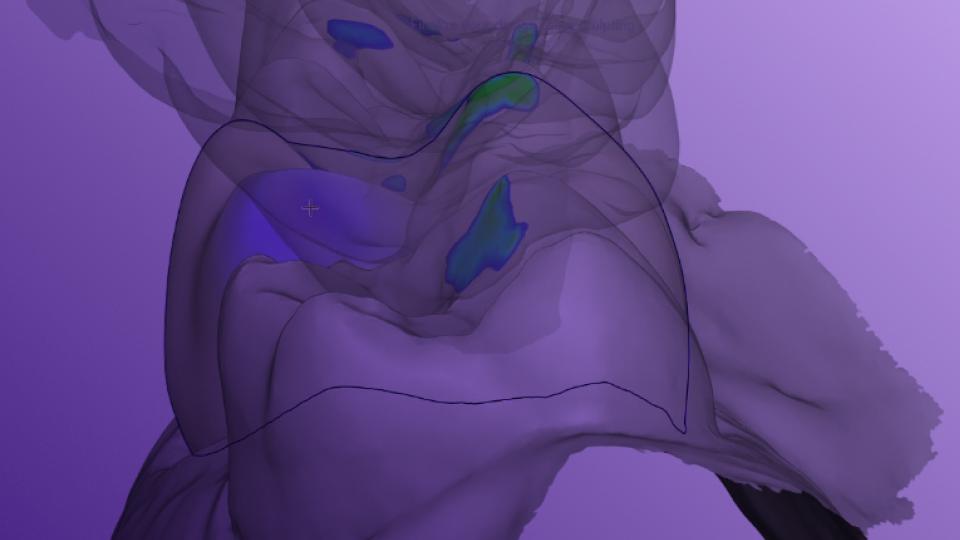
Yes. The minimum thickness for the selected material is maintained throughout design. Circle One alerts you if the prosthesis is not insertable at the chosen minimum thickness, and offers three options: auto-adjust, manual correction, or continue without correction.

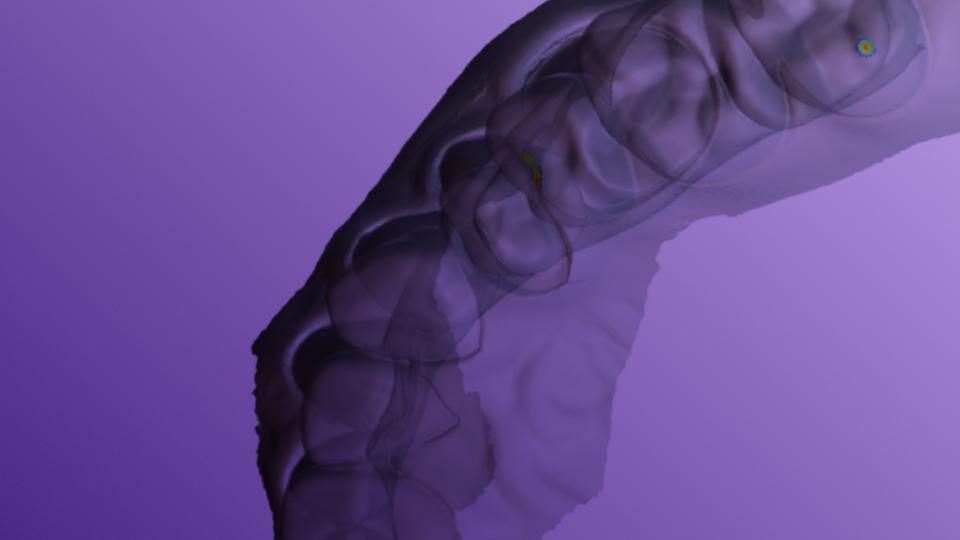
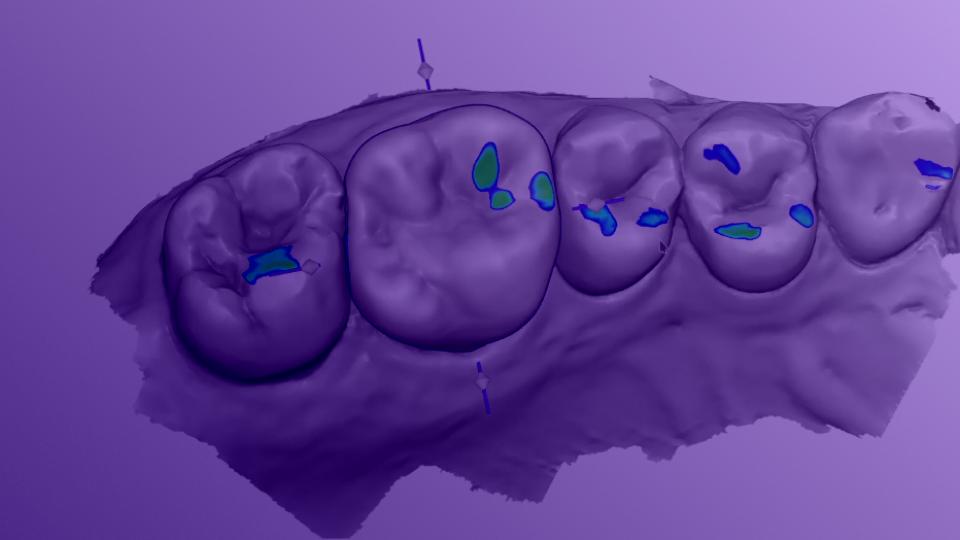
You can adjust the minimum thickness in the Manufacturing Settings or in “My Design Preferences.” Thin areas are visualized in the Colormap panel.

Can I adjust the contact points while modeling?
Modeling
+

Yes. In the Design step, you can adjust antagonist contacts in real time by smoothing or deforming them using the “Antagonist Contacts” slider.
The contacts are displayed in color through the Colormap panel, helping you fine-tune the occlusion of your prosthesis.

Can I add a border reinforcement?
Modeling
+

Yes. In the Manufacturing Settings, you can set the thickness of the border reinforcement to make it compatible with your milling tool.

Can I undo actions during the Design step?
Modeling
+

Yes. You can use the undo/redo buttons available in the interface at any time.

My case is stuck while loading the Design stage.
Design
+

If your case is stuck while loading the Design stage (for example, the loader is stuck at 40%), please check your network connection. If the problem persists, please restart your case from the beginning.