Step by step
Create a case
Learn about each step, from scanning to exporting the manufacturing files.
Guide

Create your case with Shining 3D

Send your scan from Shining 3D IOS and create your first case.
Start
Guide

Create your case with Alliedstar

Send your scan from Alliedstar IOS and create your first case.
Start
Guide

Create your case with DEXIS

Send your scan from DEXIS IOS and create your first case.
Start
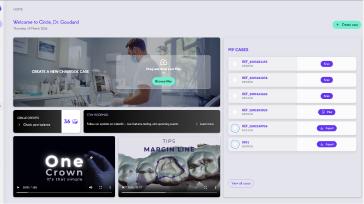
Create your first case
Video
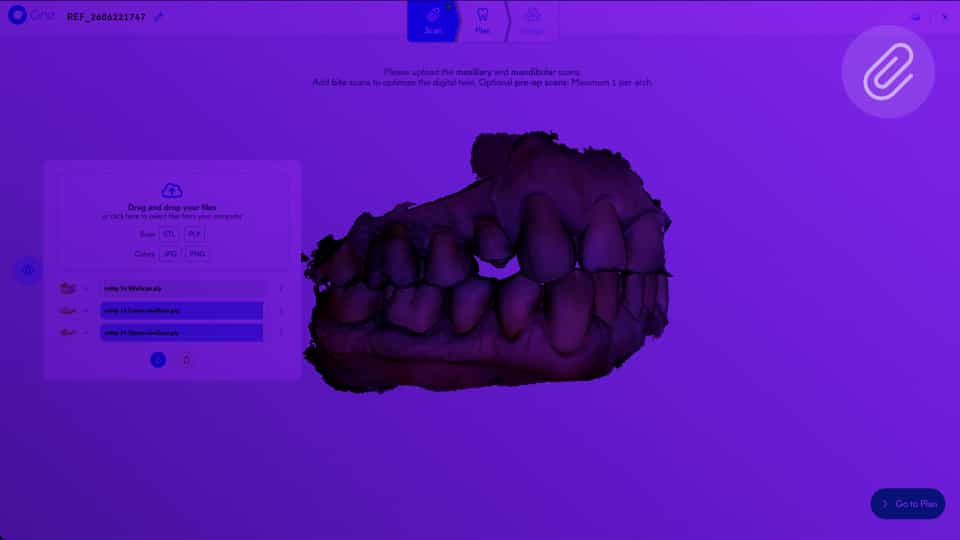
Step - Scan control
View and manage your scanned files using the viewer.
Learn more
Video
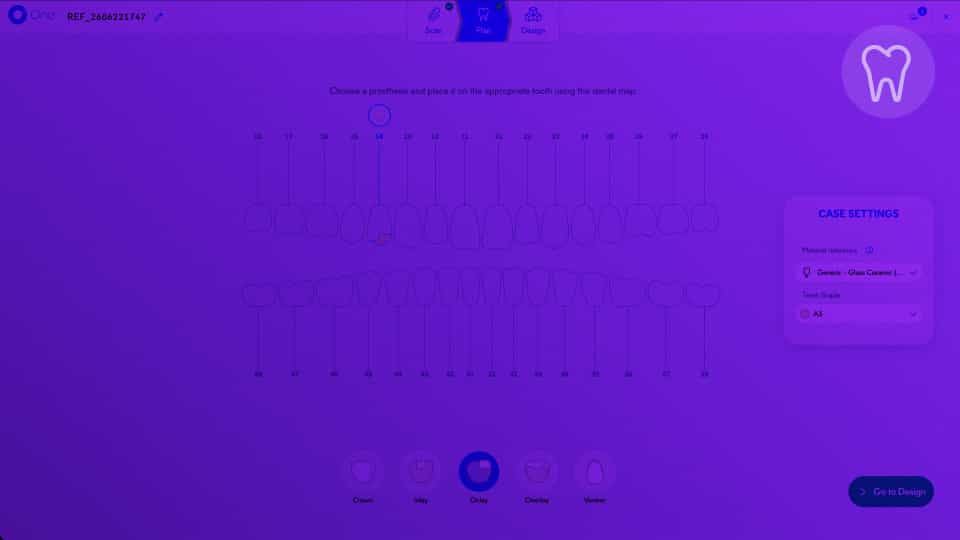
Step - Plan
Select the prosthesis type, choose the target tooth on the dental map, confirm material and shade, then launch the design.
Learn more
1
min
This is some text inside of a div block.
Learn more
1
min
This is some text inside of a div block.
Learn more
1
min
This is some text inside of a div block.
Learn more
1
min
This is some text inside of a div block.
Learn more
Créer un compte
Faites le tour de l’interface et explorez les principales fonctionnalités de Circle One.
1 min
Créer un compte
Faites le tour de l’interface et explorez les principales fonctionnalités de Circle One.
1 min
Créer un compte
Faites le tour de l’interface et explorez les principales fonctionnalités de Circle One.
1 min
Créer un compte
Faites le tour de l’interface et explorez les principales fonctionnalités de Circle One.
1 min

FAQ

Which file formats are supported?
Scan
+

Circle One supports STL and PLY
DCM files (3Shape DCM) are not supported at this time.

Do I need to provide a bite scan?
Scan
+

Bite scans are optional but highly recommended: they enable accurate occlusion analysis and improve the calculation of element orientation.

For optimal efficiency, here are our recommendations:

- For a full arch, you can create one bite scan per hemi-arch,
- For a hemi-arch, center the bite scan on the preparation and scan the adjacent teeth,
- Capture the bite scan after preparation,
- Do not scan soft tissues: if they appear on the bite scan but not on the main scan, this will create areas without overlap.

If your scanner does not export a bite scan, you can usually enable this option in the export settings.


Can I add a prescan?
Scan
+

Yes. The prescan is available in the Design step and keeps a reference of the tooth’s original anatomy. Our AI can generate an interpolation between the automatic proposal and the prescan shape, so you can choose the result that suits you best.

What is the recommended resolution for digital impressions?
Scan
+

Circle One works fine with a standard-definition scan.

A scan with too much detail (HD) can, in some cases, slow down the loading of the case.

Standard quality offers the best balance between model accuracy and processing performance.

How many prosthetics can I design at once, and which types are available?
Plan
+

You can design crowns, inlays, onlays, overlays, and veneers. More prosthetic types will be added soon. For now, only one product per case is supported.

How do I access my cases? How can I view case details?
Plan
+

From your dashboard, click “My Cases” to view the full list of your cases.
You can sort or search for a specific case using the filters or the search bar.

After you approve your design, the case summary opens automatically. If you want to review it, simply click the “View” button on the case card.

How is the automatic proposal calculated?
Design
+

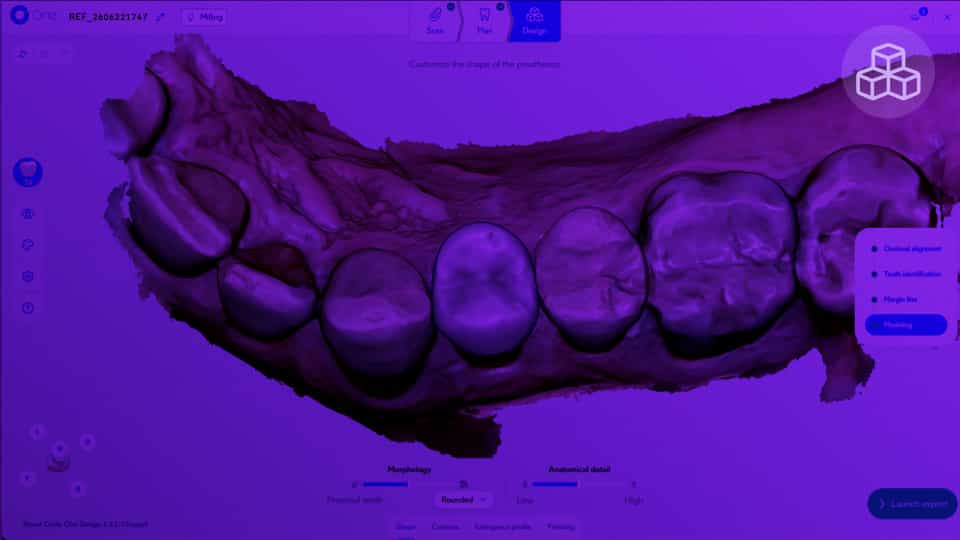
The automatic proposal is generated by analyzing your scans and taking several key parameters into account, including tooth anatomy, occlusion, proximal contacts, minimum thickness requirements, and manufacturing constraints.

Our Collaborative AI maintains occlusal contacts, insertion axis, and functional balance in real time, helping you obtain a design that is both functional and easy to manufacture.

Can I modify the proposal? Is it safe to do so? How?
Design
+

Yes. You can freely adjust the automatic proposal using the available tools.
Thanks to our Collaborative AI, Circle One updates the model in real time and maintains key parameters such as: distance to adjacent and opposing teeth, insertion axis, minimum thickness, functional balance.

Every adjustment is simulated instantly, helping you keep a stable and reliable design as you refine it.

Can I reopen and edit an existing design?
Design
+

Not yet. Your design cannot be saved at No, a validated design can't be reopened or edited. To start over from an existing case, use the dot menu on the case card and select "Create a new case from patient files": a new case is created with the same scans, letting you restart the design from scratch.

Can I go back during the Design step?
Design
+

Yes. You can use the undo/redo buttons available in the interface at any time.

Why does my session end if I stay inactive during the Design step?
Design
+

If no activity is detected for a few minutes, the case automatically closes. This helps manage server load and keep Circle Credit costs optimized.

Is the bur diameter (tool offset) taken into account during real-time modeling?
Export
+

Yes. The bur diameter (tool compensation) is defined when configuring your machine in “My Equipment.” Circle One uses this during modeling to ensure your design is perfectly millable.

This option also applies to printing settings (0 mm by default, 0.3 mm recommended) to avoid resin residue in sharp intaglio areas.

How do I get my manufacturing files? What do they include?
Export
+

Once generated, your production files are available for download.
They include:
- the modeled prosthesis in STL format
- the finish line in PTS format (useful for certain manufacturing methods, primarily milling)

All export files are automatically oriented according to your chosen production method (milling or 3D printing).

You can download them as a ZIP file or in OCM (Circle One Manufacturing) format.
The OCM format lets you automatically launch your manufacturing software upon download when the Circle One Manufacturing module is installed.

Will my export always remain accessible?
Export
+

Yes. Once your manufacturing files are generated, they remain available in your case details.
You can download them as many times as you need, at no additional cost.

My case is stuck while loading the Design stage.
Design
+

If your case is stuck while loading the Design stage (for example, the loader is stuck at 40%), please check your network connection. If the problem persists, please restart your case from the beginning.