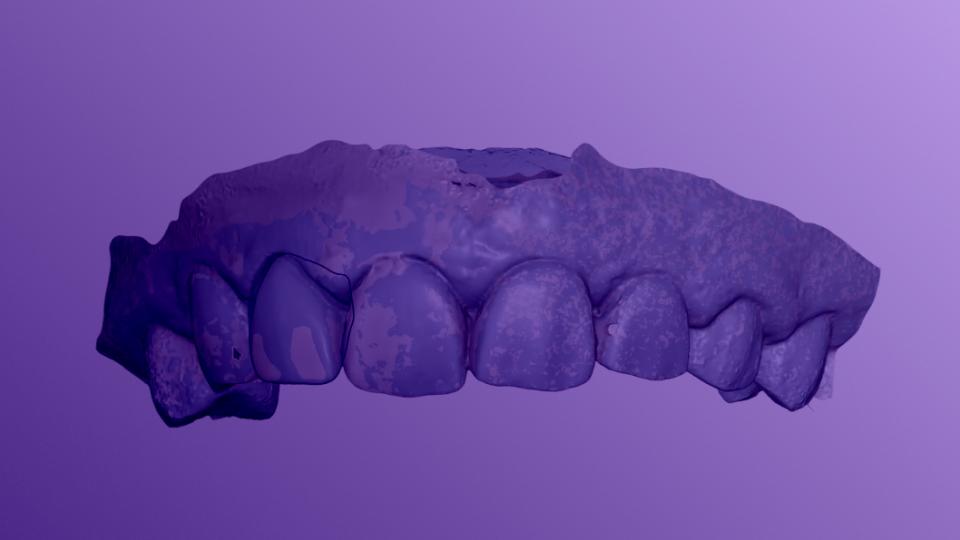

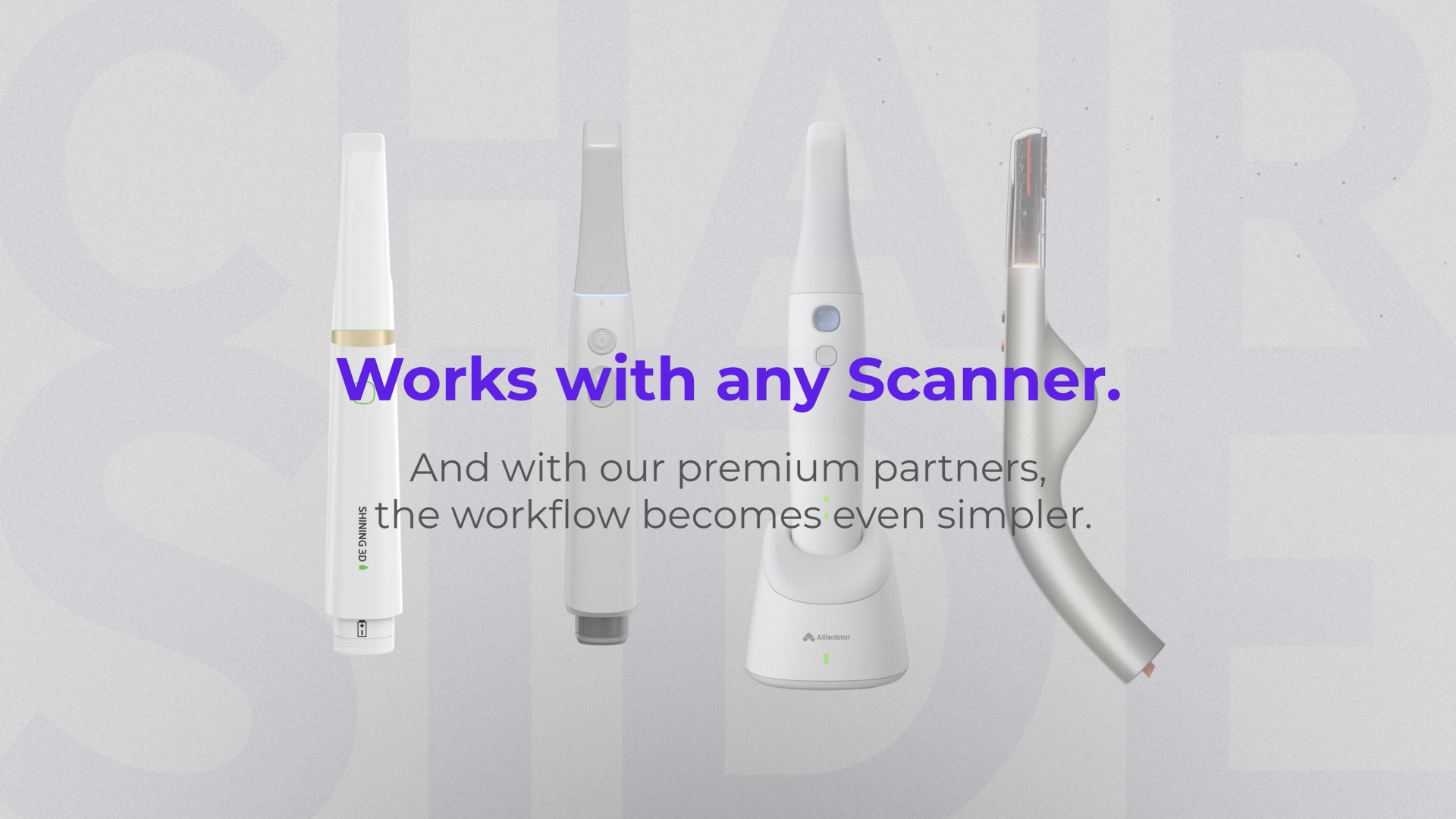
1. Circle One fits seamlessly into your existing setup, whatever scanner you use.
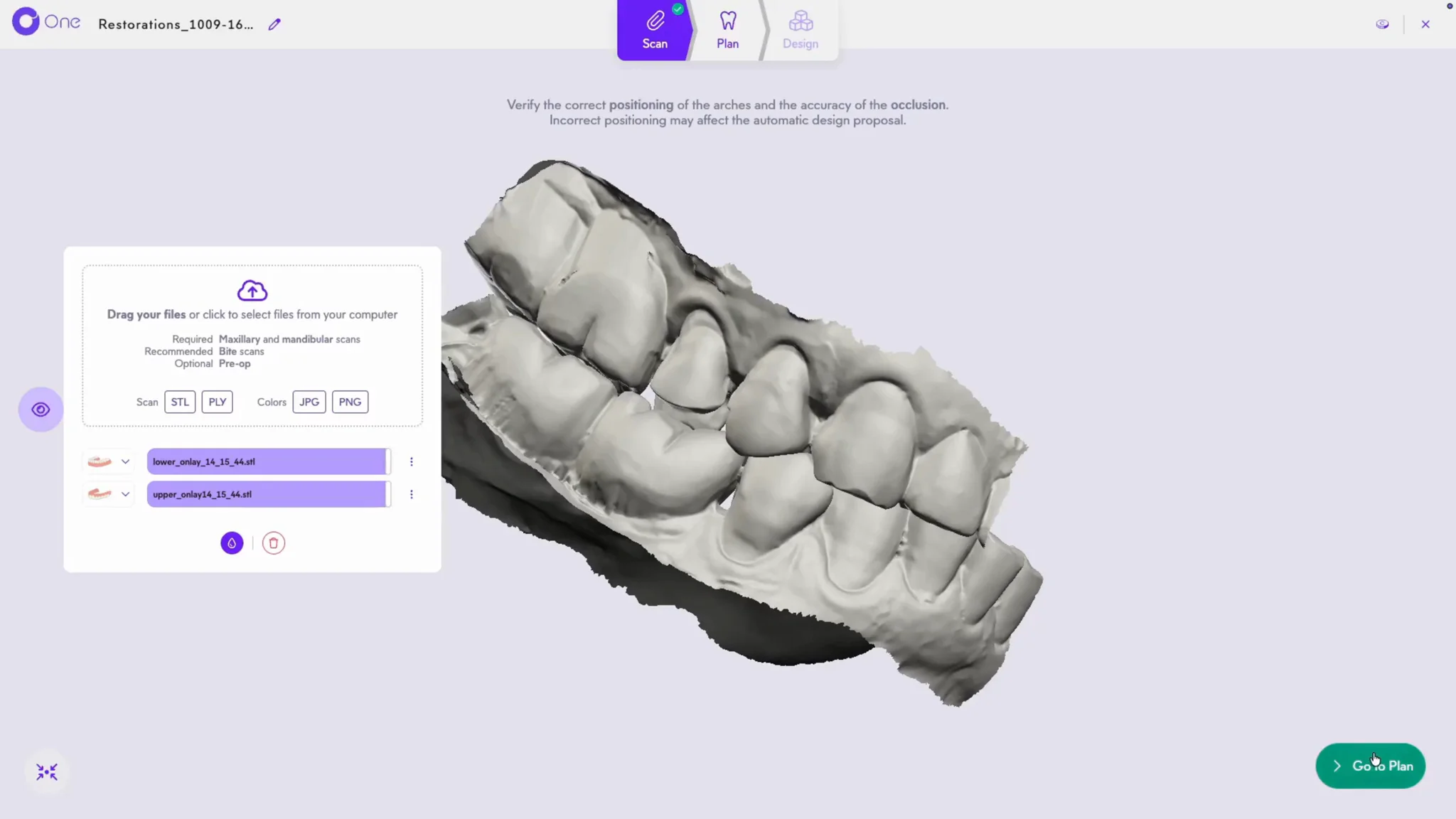
2. In the Scan step, check your impressions before moving on.
3. In Plan, select the prosthesis type, here an onlay.
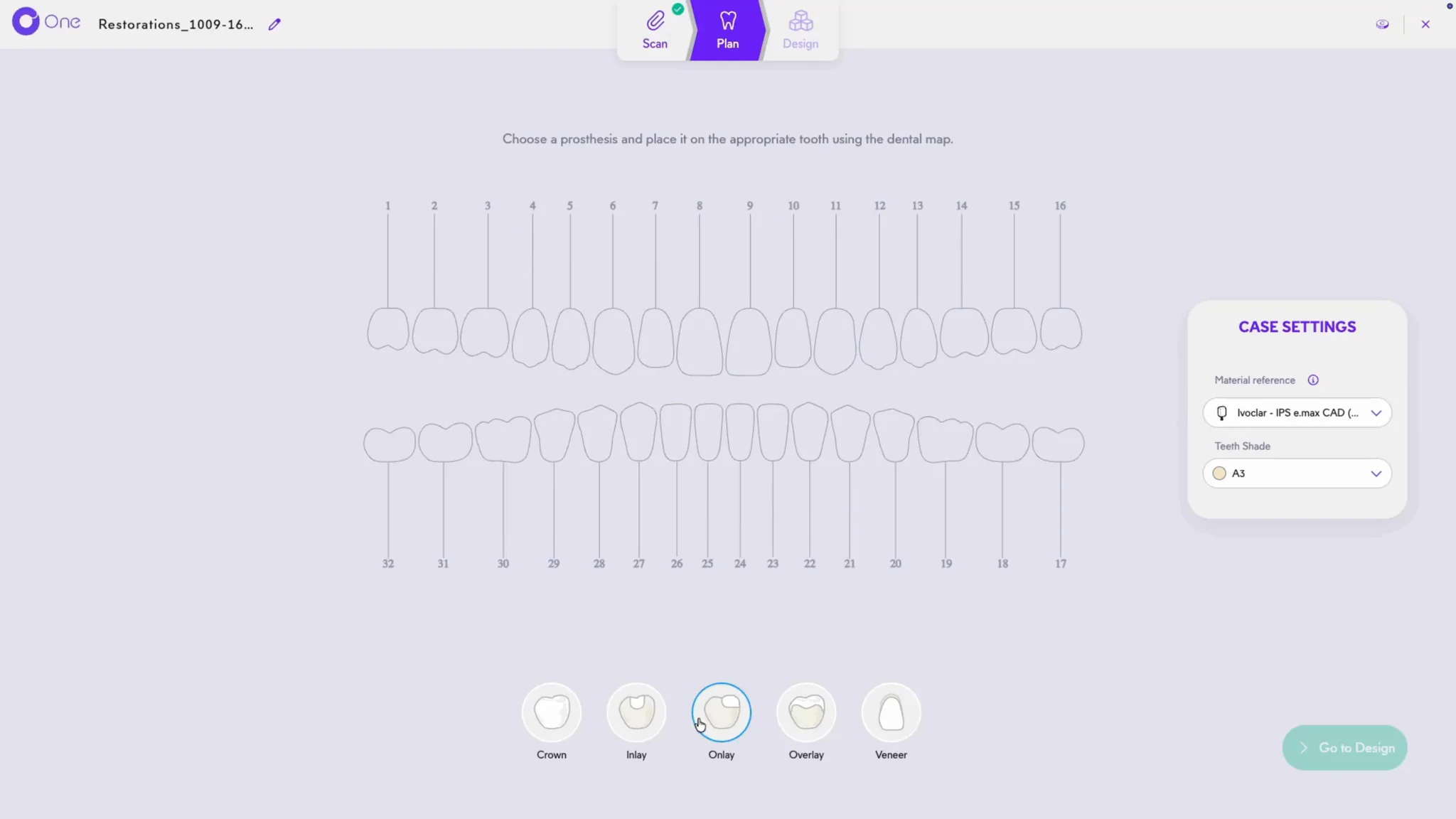
4. Then the relevant teeth on the map.
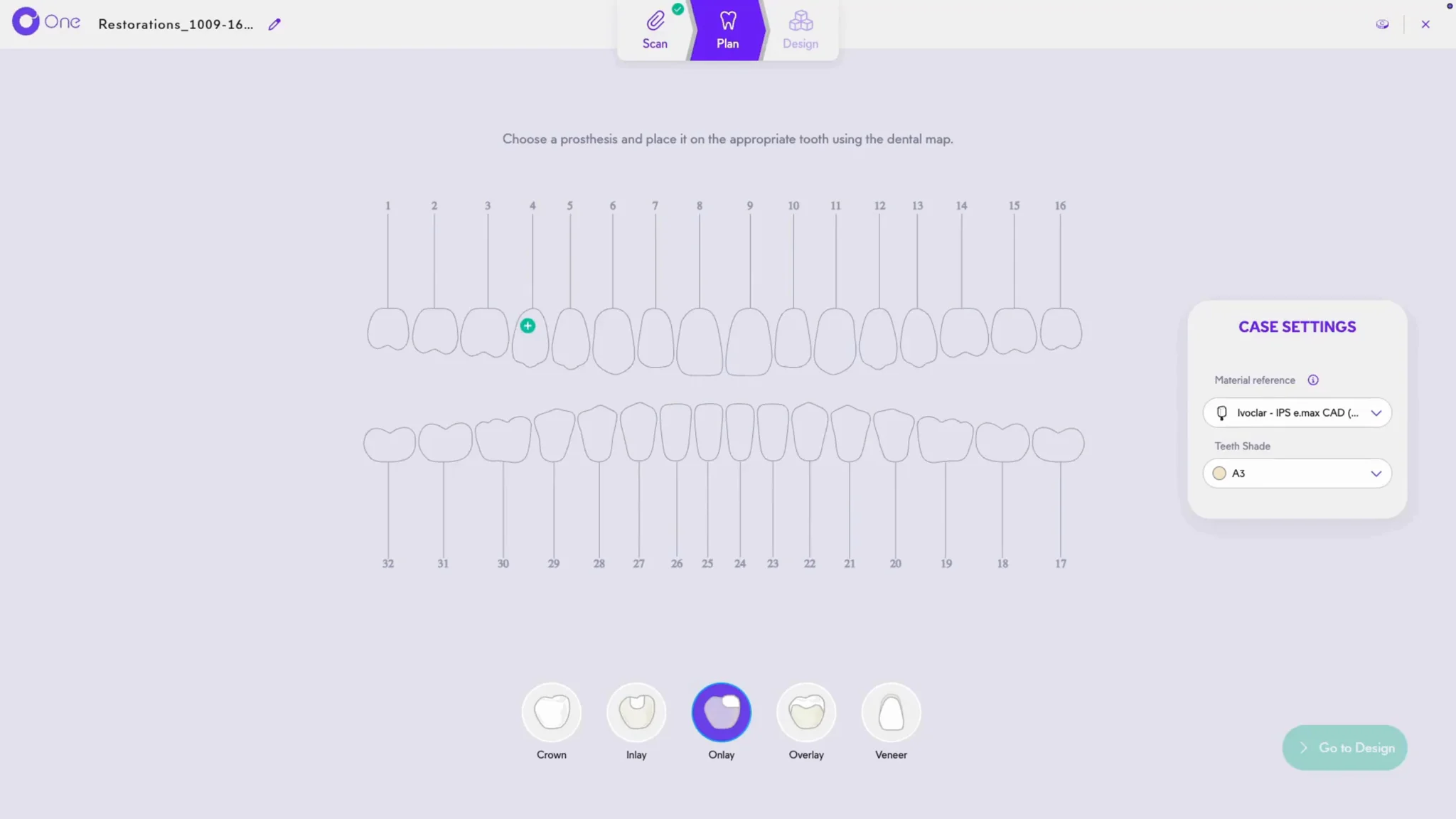
5. One Circle Credit is added per prosthesis, consumed when you validate the Design. The material and shade are pre-set: check them and adjust them if needed.
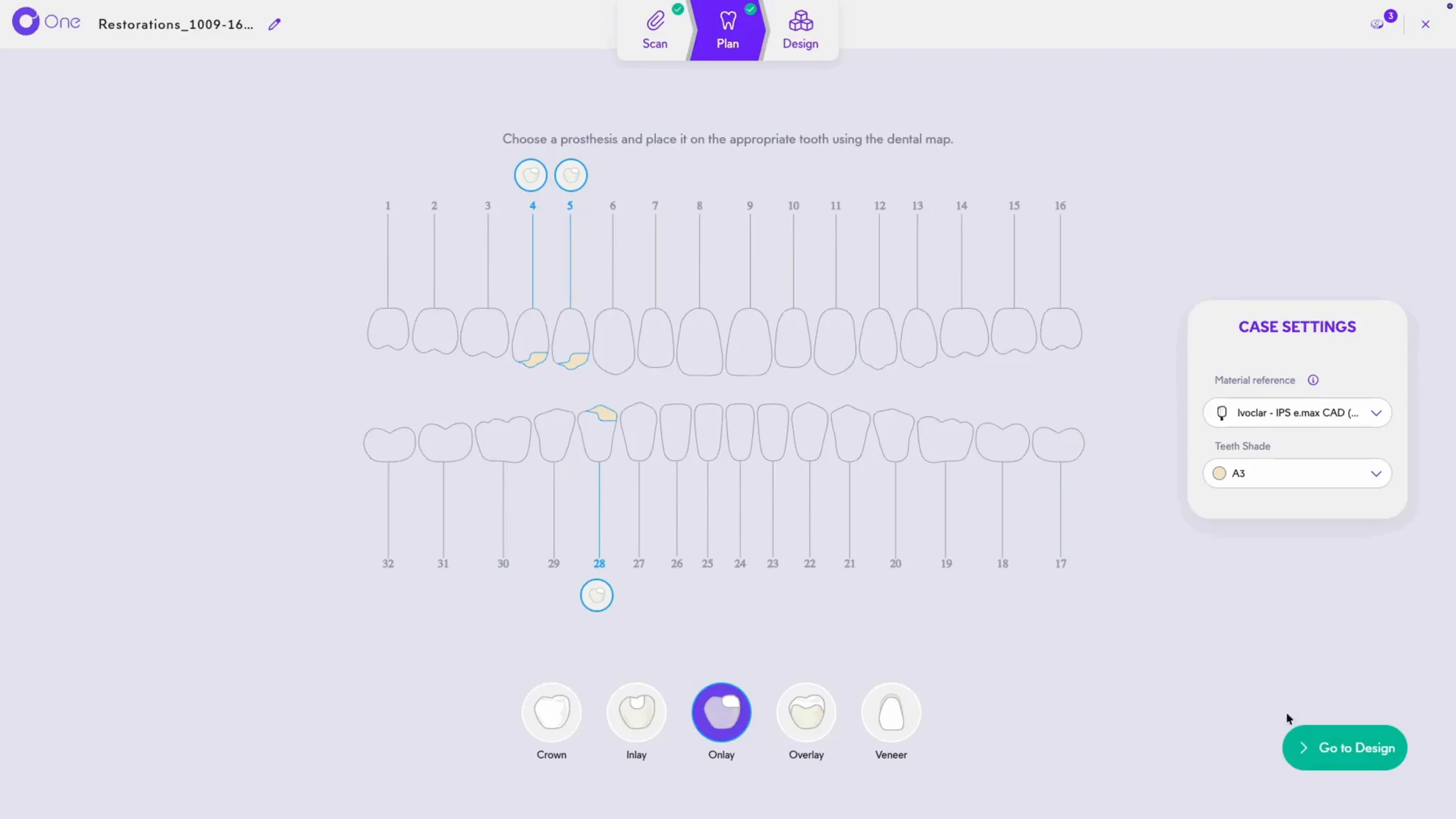
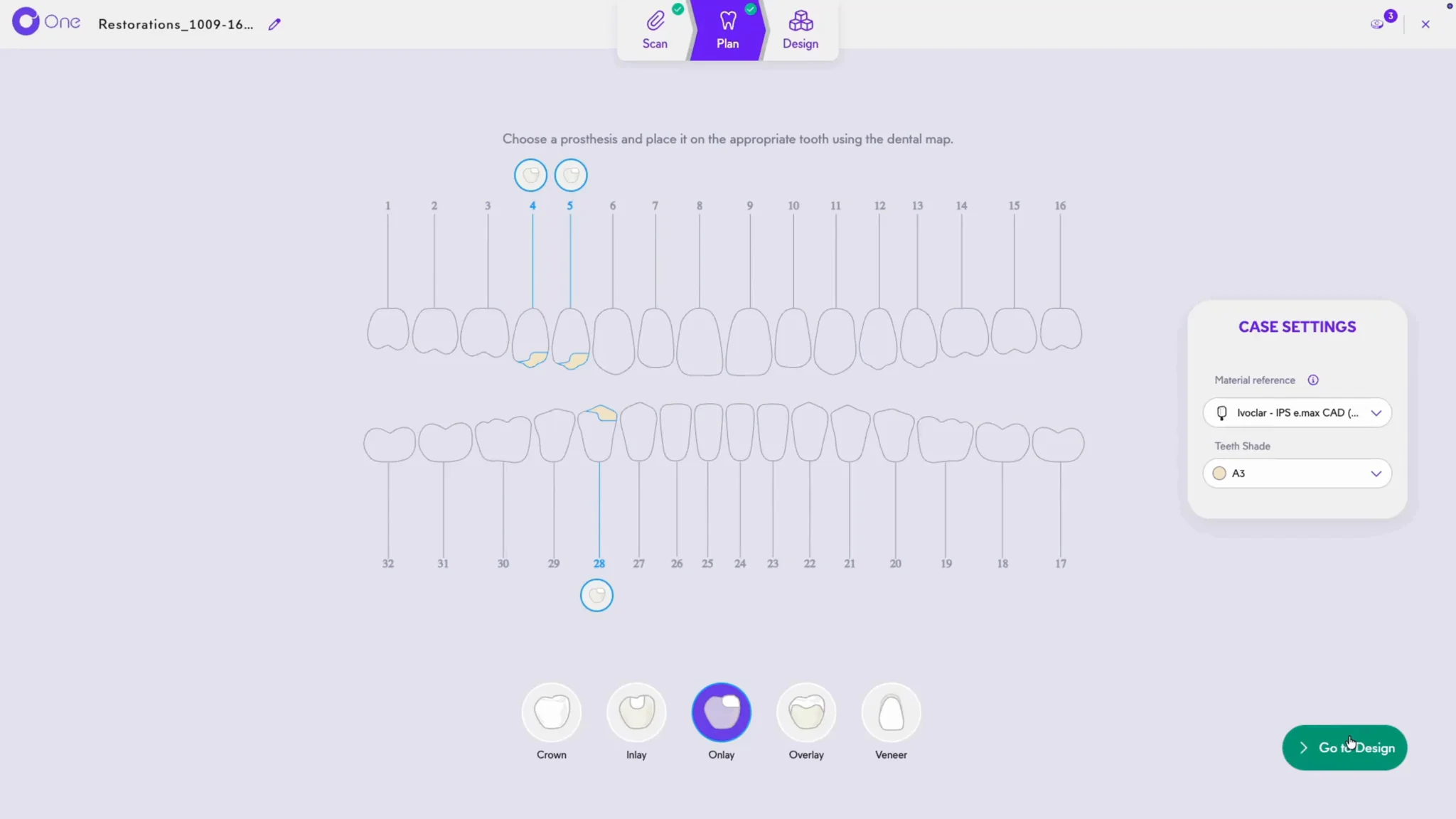
6. Then launch the Design.
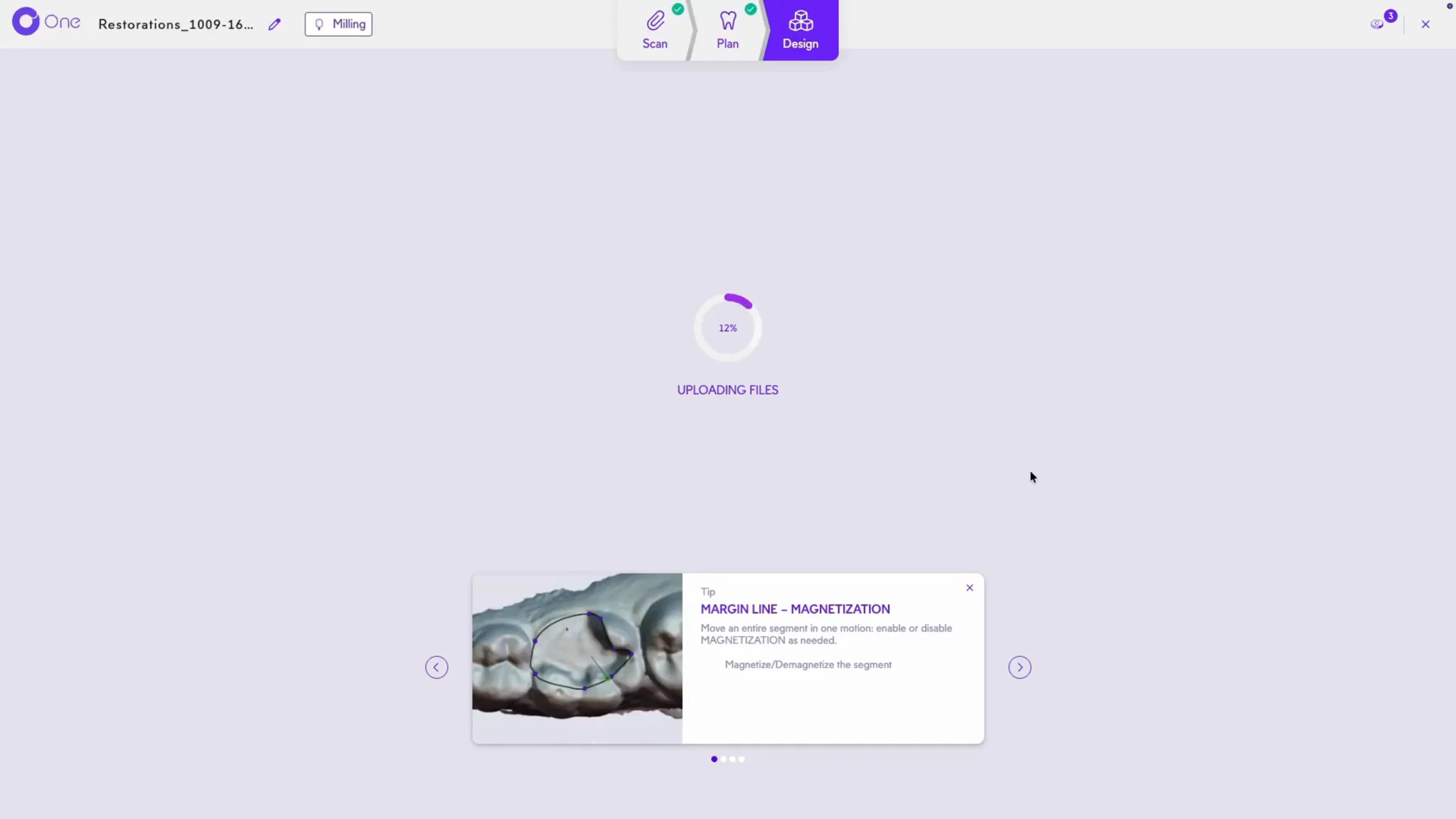
7. Circle One automatically generates a proposal for each prosthesis. Processing time varies depending on the number and type of products.
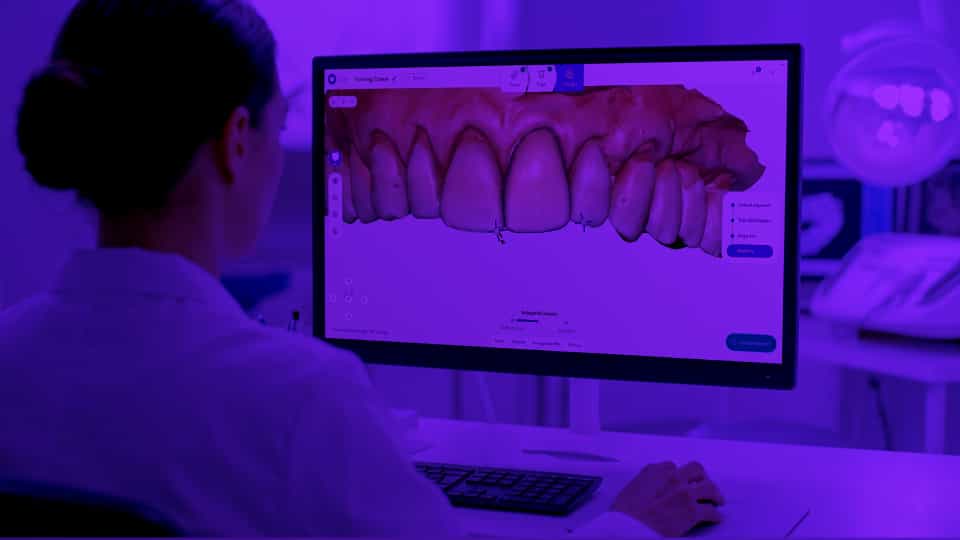
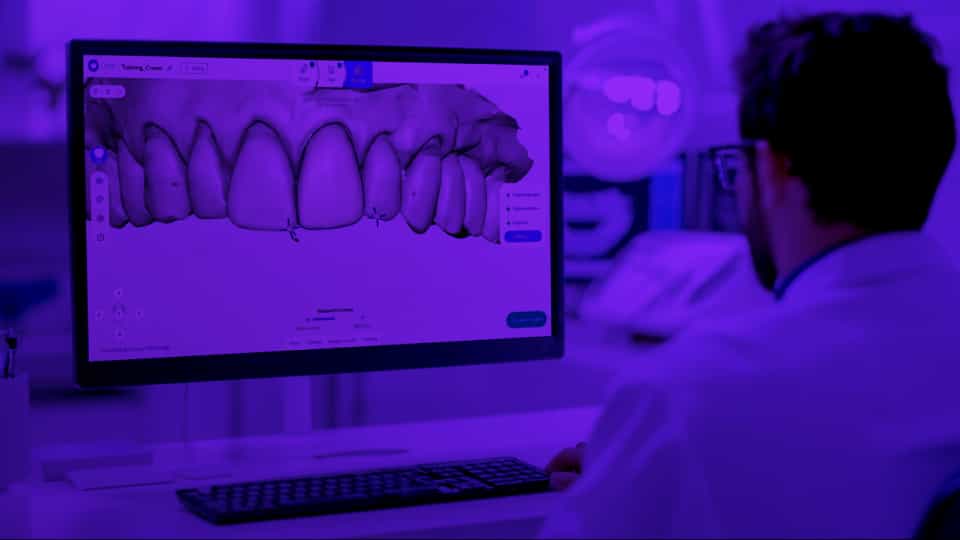
8. First check the margin line and insertion axis of each onlay, and adjust them if needed.
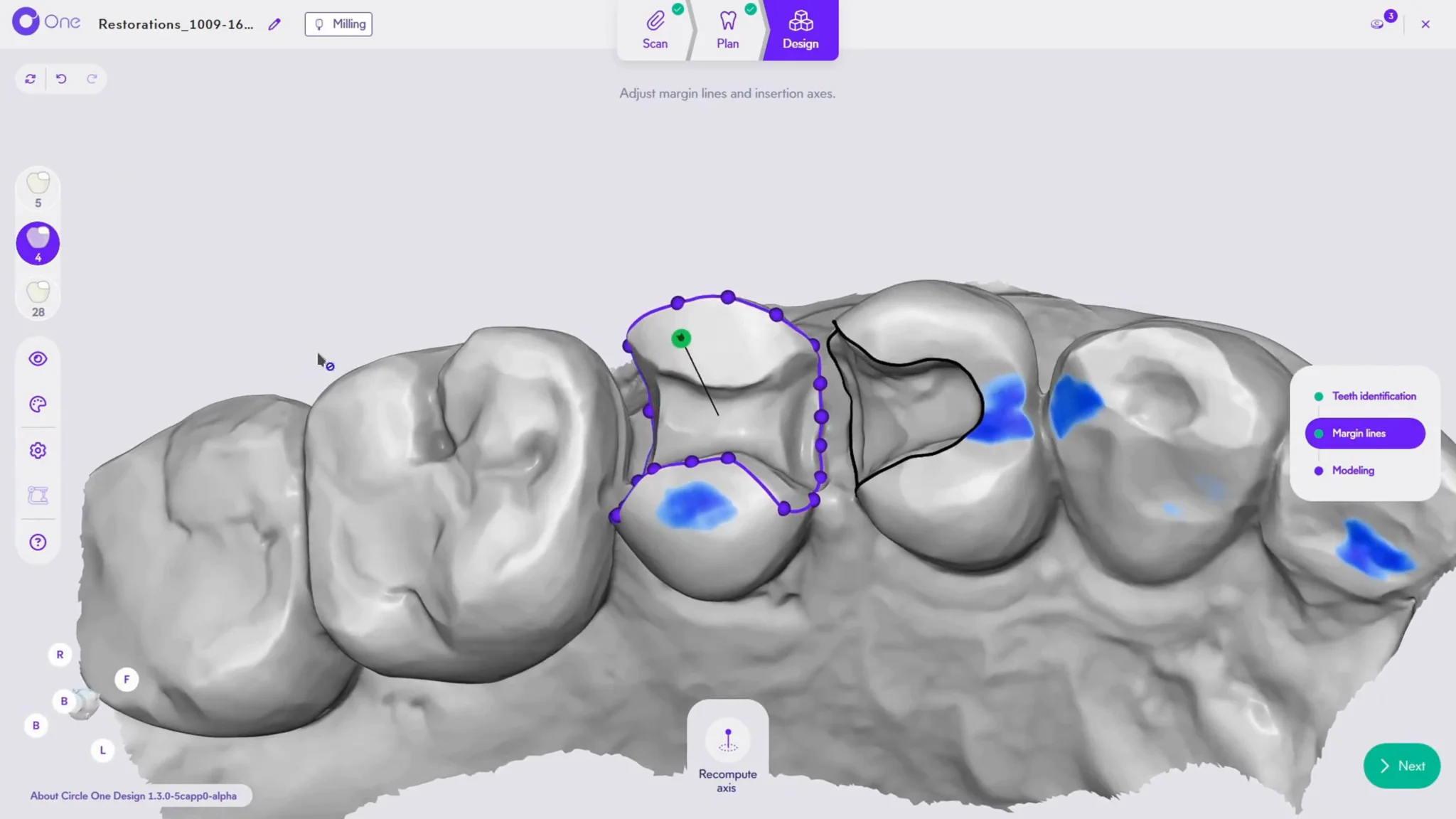
9. To switch from one product to another, select the prosthesis directly in the 3D view, or from the menu on the left.
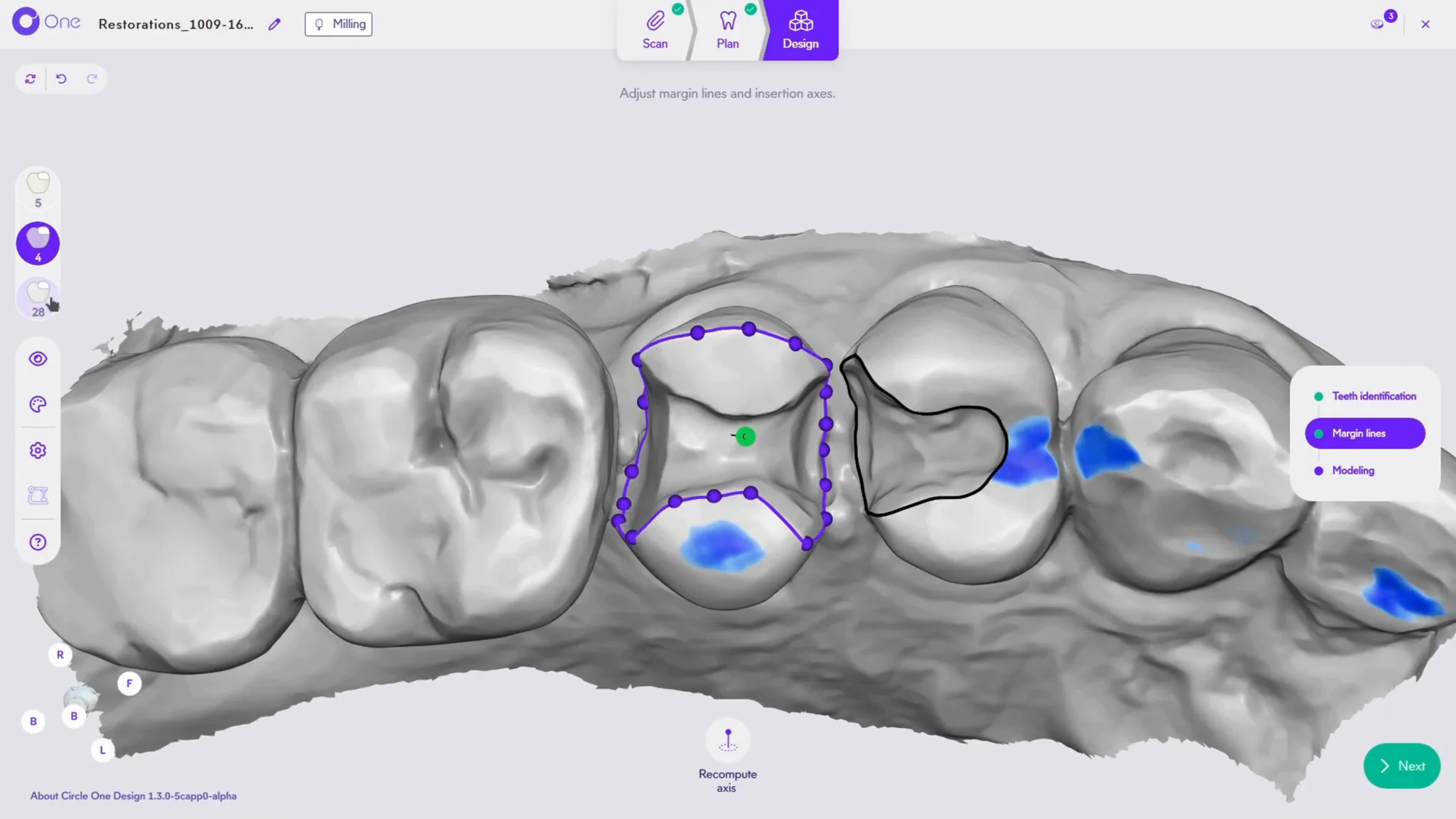
10. Then move on to Modeling.
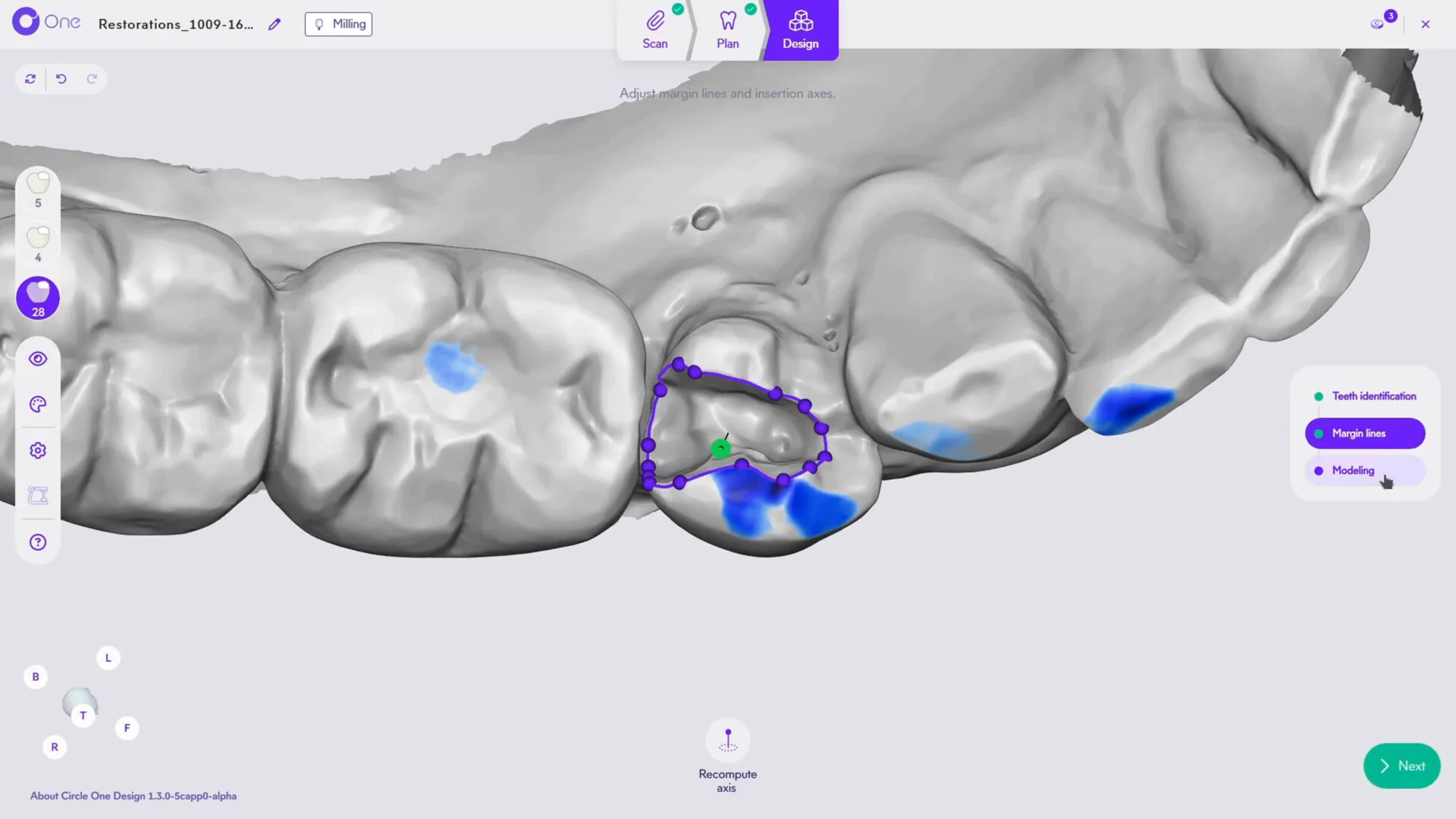
11. Orient the view to check each proposal from every angle.
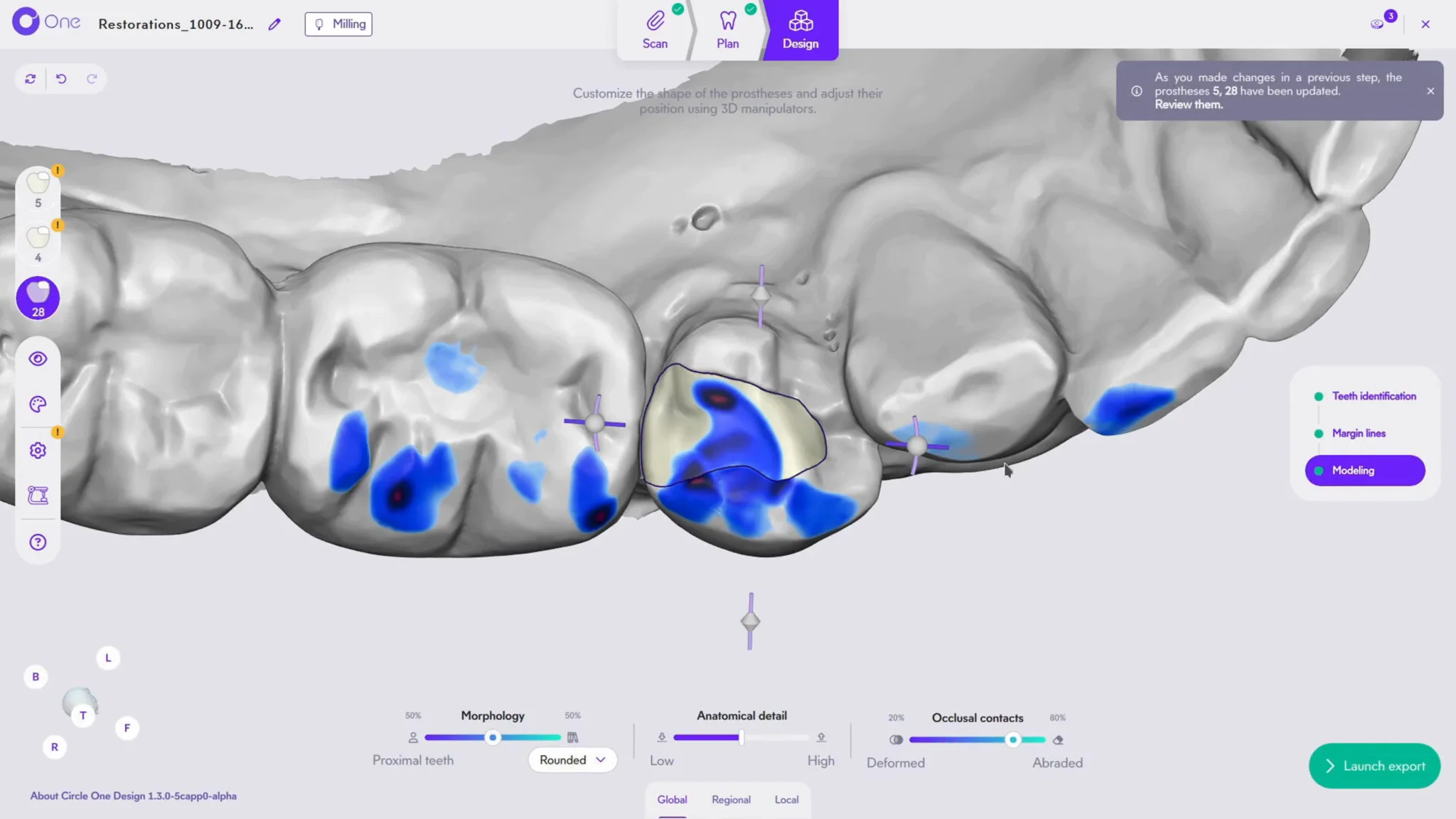
12. Refine the occlusion with the articulator: in dynamic mode, it reproduces mandibular movements for a functional occlusion.
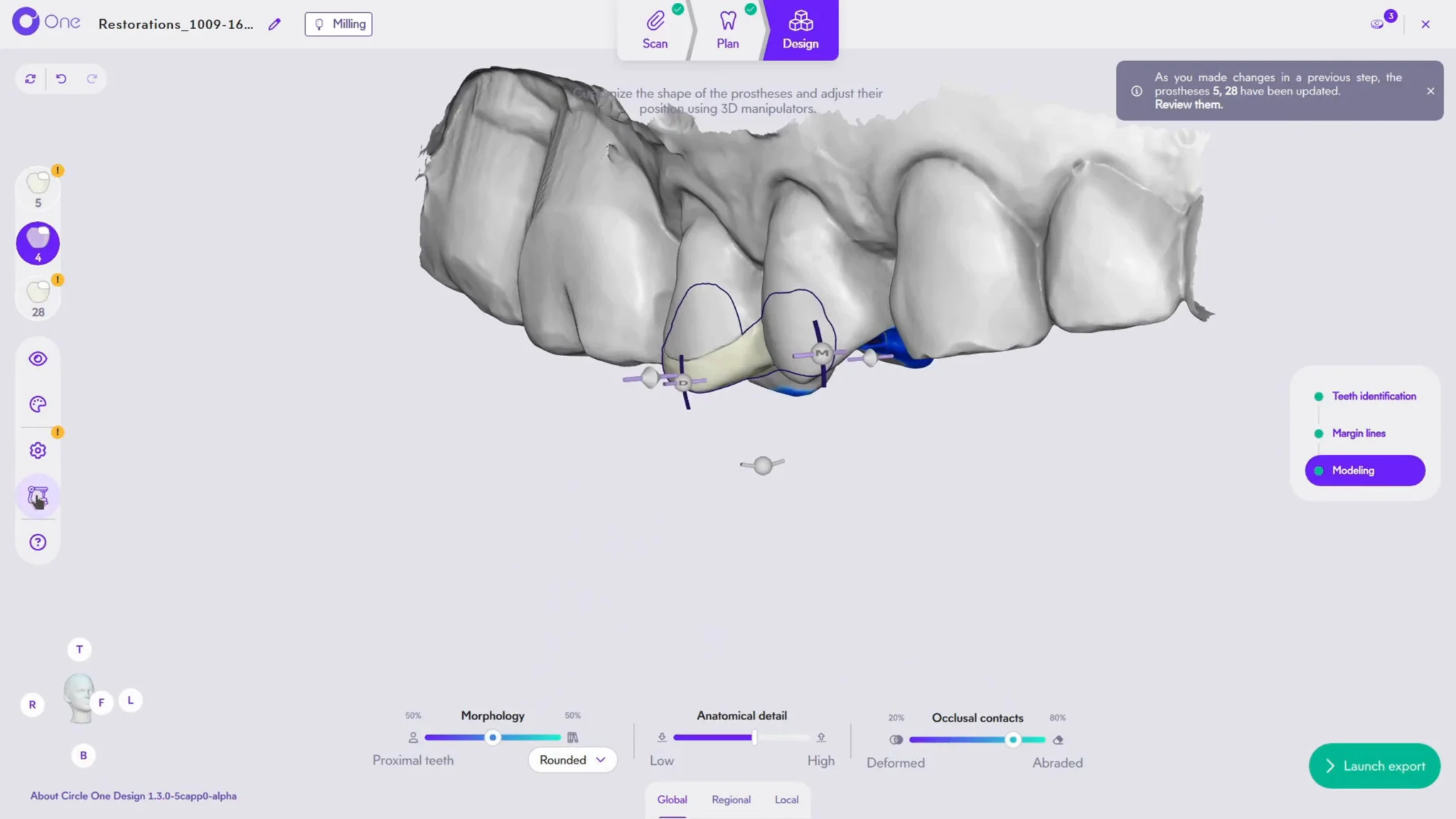
13. Need to adjust? Rework the proposal with the Deform tool. Like all Smart Tools, it lets you intervene in real time, in an environment protected by the Collaborative AI.
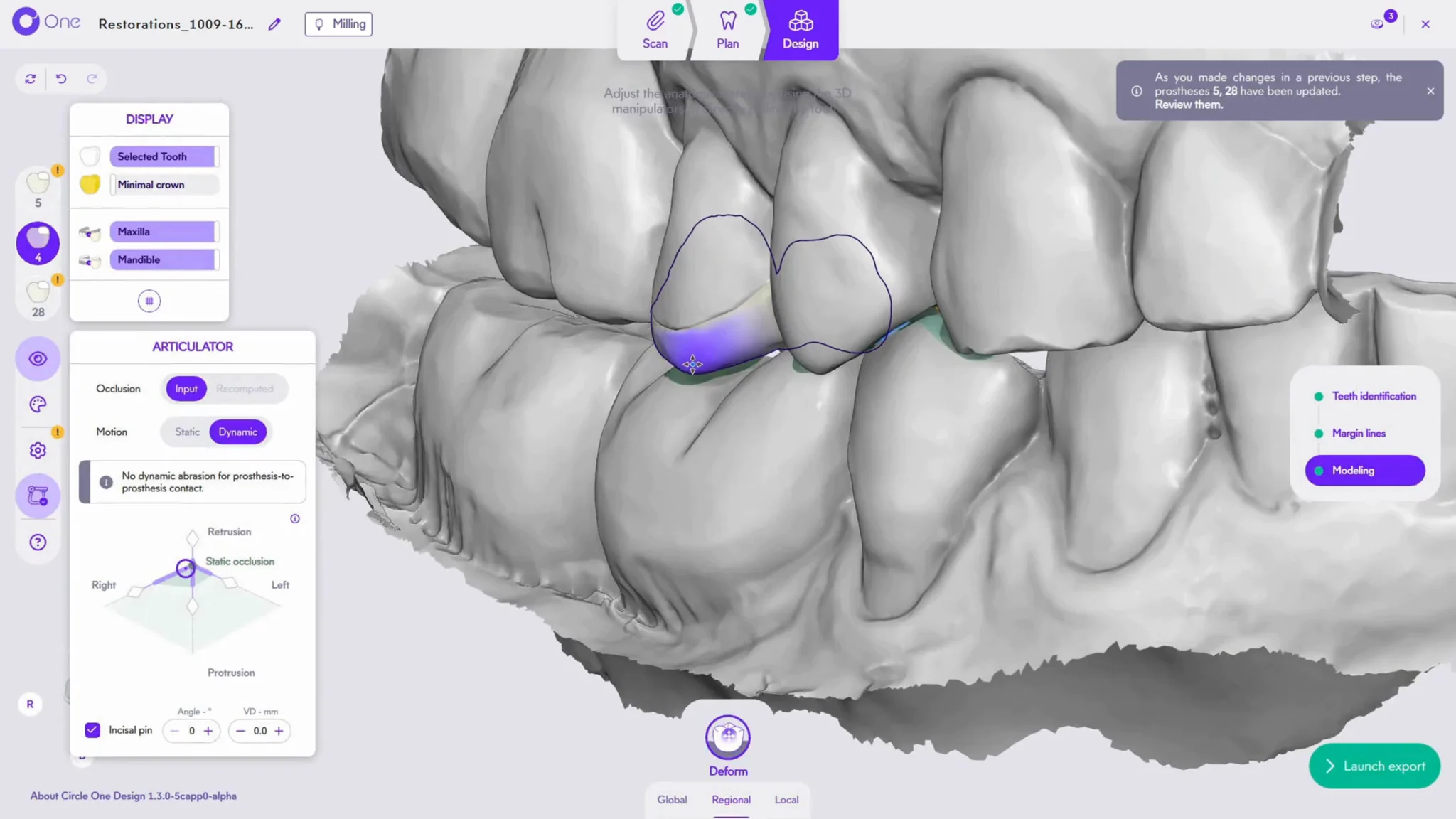
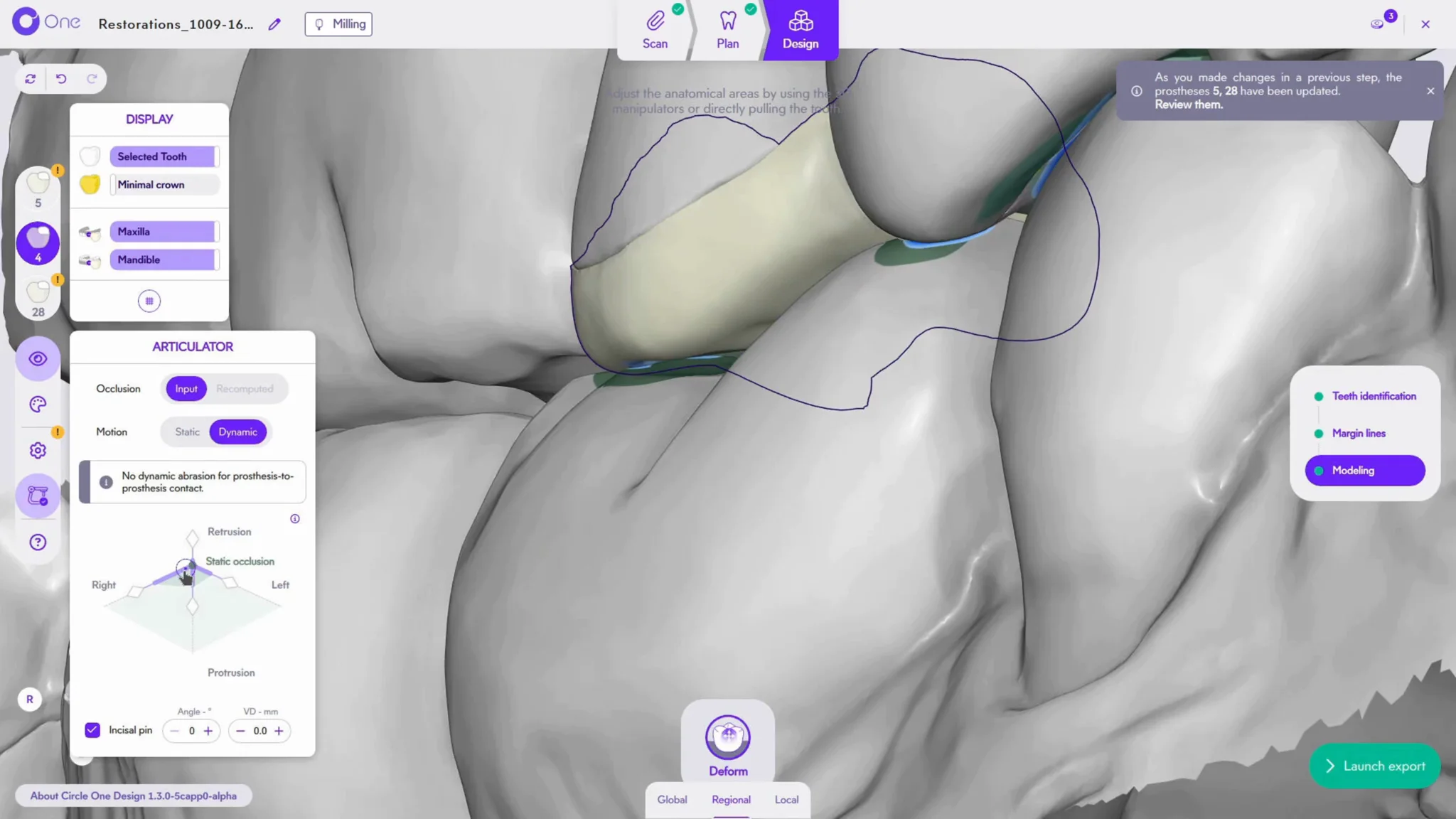
14. Run another simulation with the articulator to validate your adjustment.
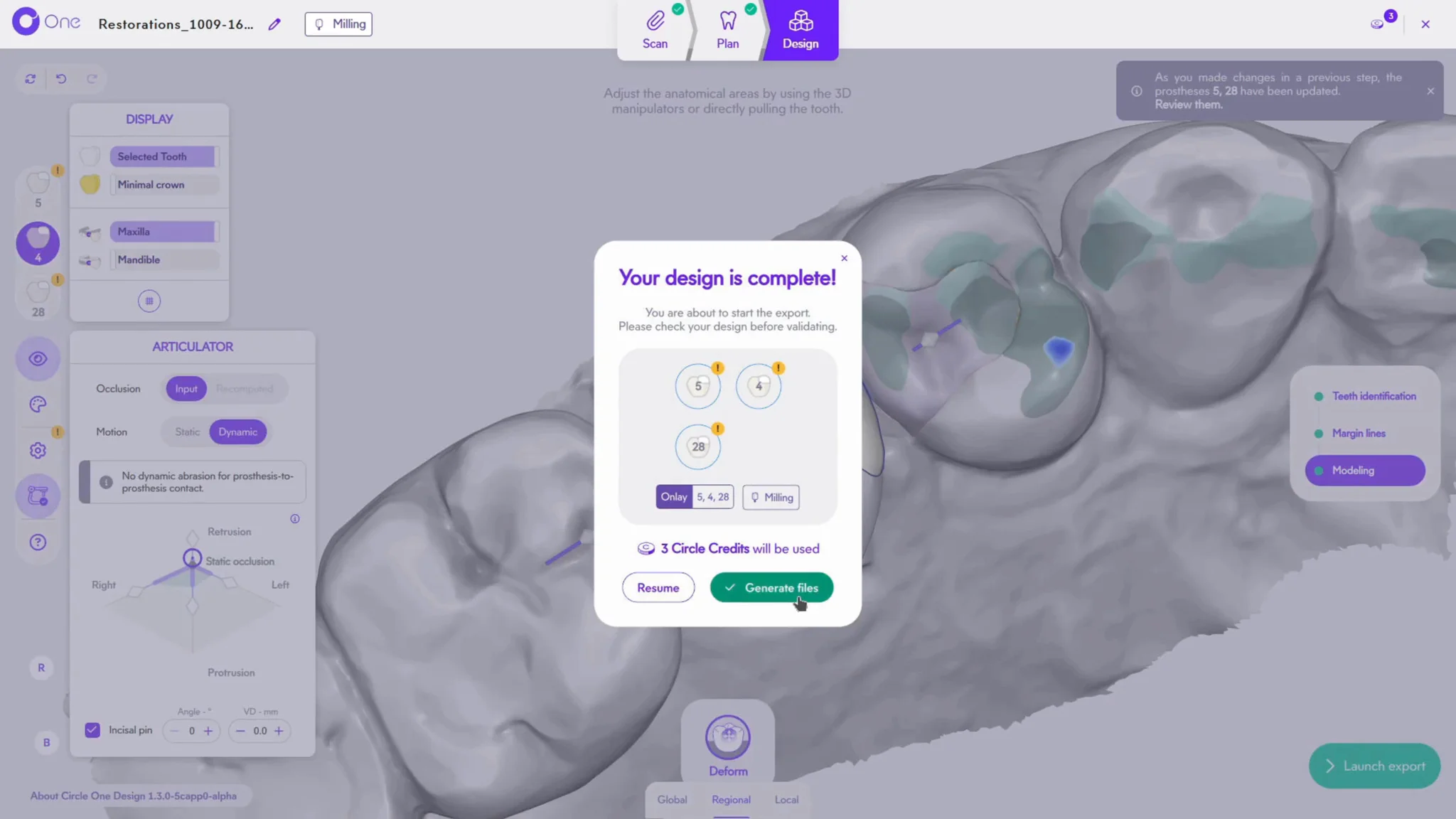
15. Once your onlays are validated, launch the export.
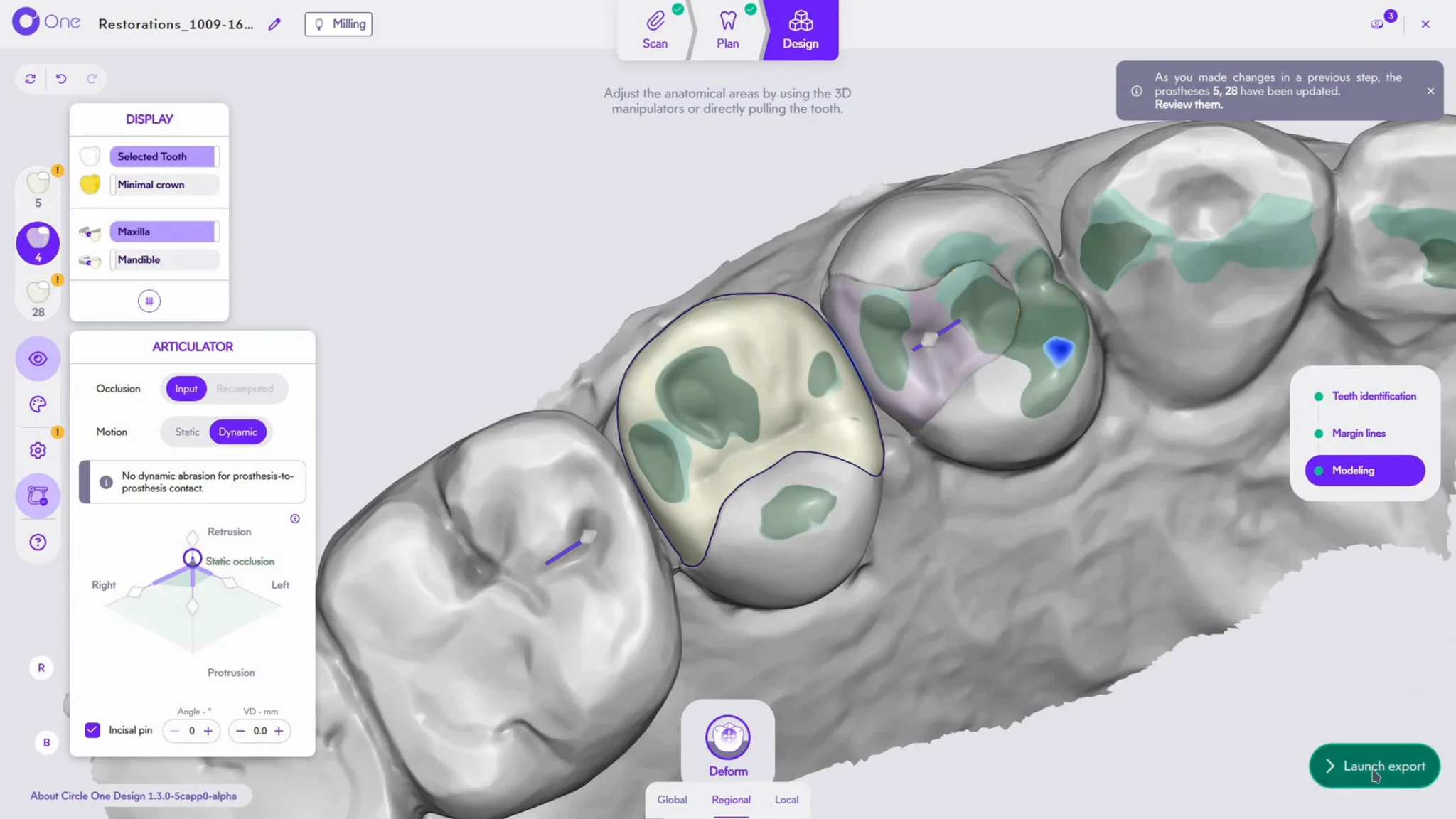
16. A summary appears. Confirm with Generate files: your manufacturing files are created and your Circle Credits consumed.
17. The summary window shows the case information and the files to produce in the viewer.
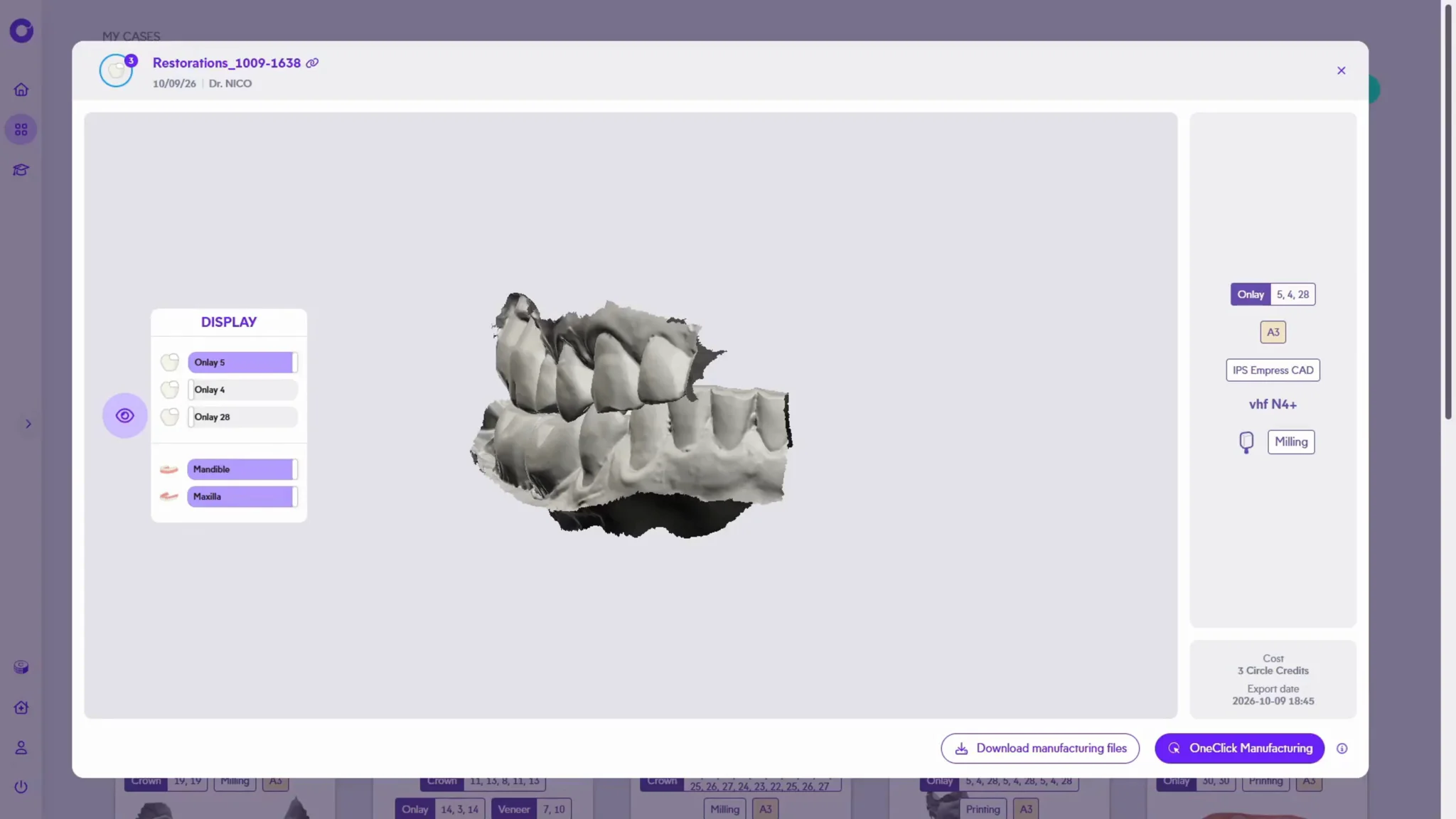
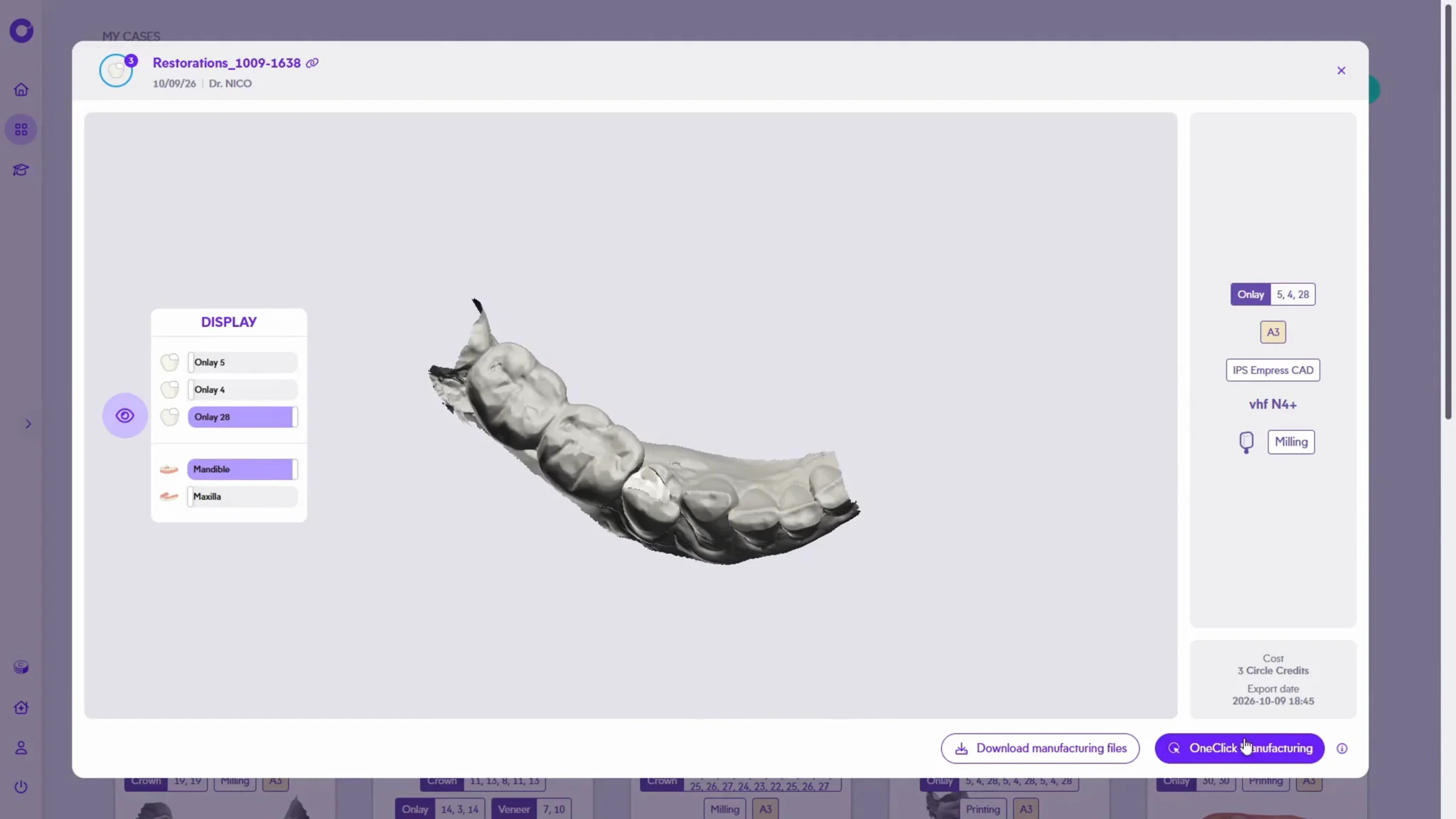
18. To launch manufacturing, click OneClick Manufacturing. The module must be installed beforehand — visit our Help Center to download and configure it.
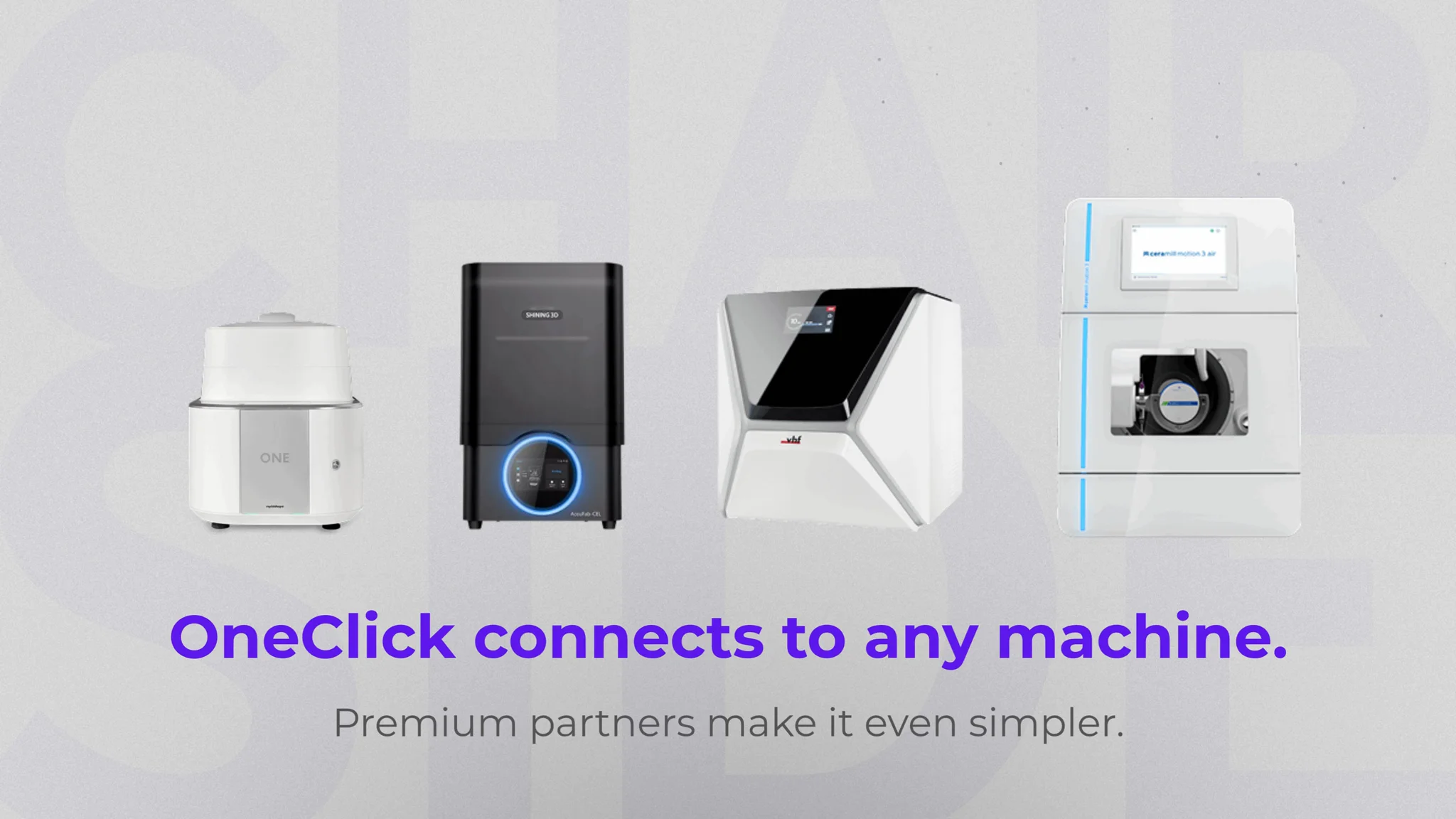
19. Circle One fits seamlessly into your existing setup, whatever manufacturing solution you use.