
Technical Support
Remote Access Software
Article
Download and install RustDesk or TeamViewer so the Circle One support team can assist you remotely.
Equipment

In order for our support team to assist you, you might have to download and install the following remote access software.

RustDesk (Preferred)

RustDesk is our preferred remote access software for support access. It is free, open-source and easy to use.

Download & Installation

  1. Download the RustDesk installer from rustdesk.com/download.
  2. Once the download is complete, click on the file in your browser's download section or in your Downloads folder to run the installer.
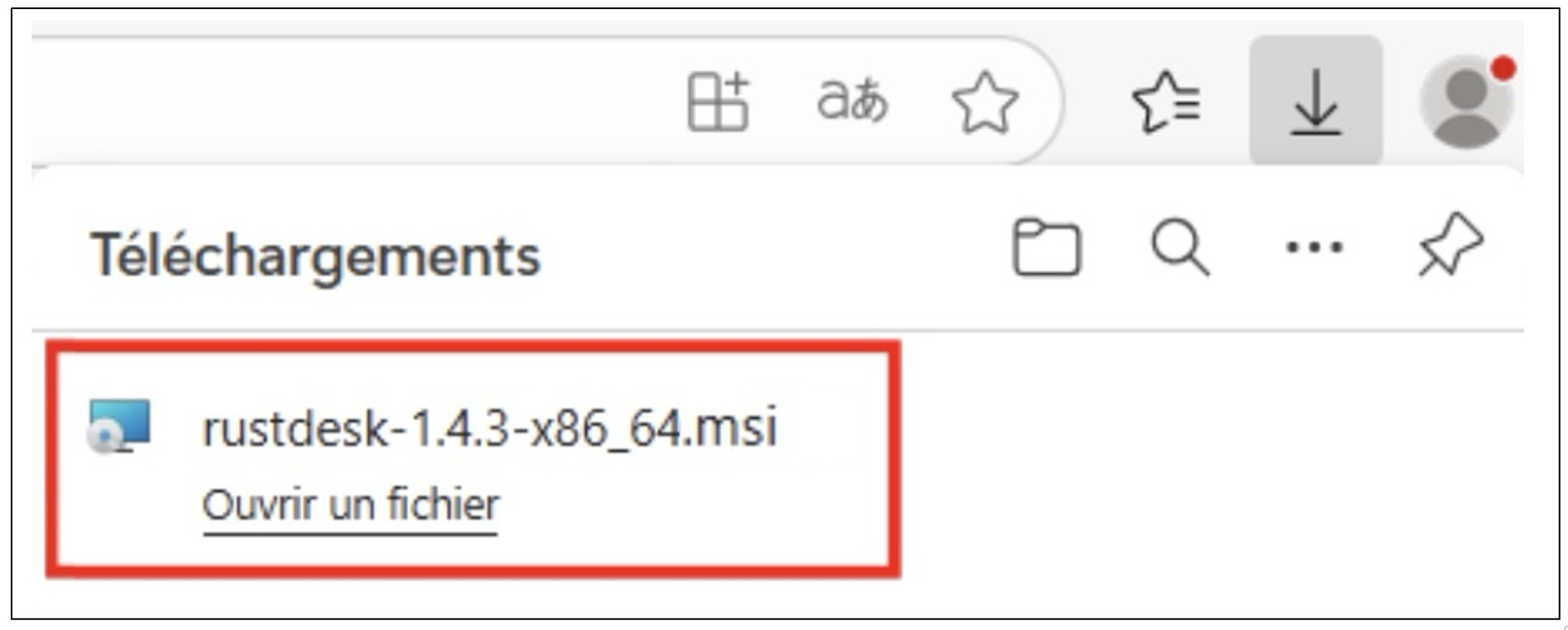
    Download view of the browser with RustDesk installer circled
  3. Proceed with the standard installation by clicking Next as needed, then Finish.
  4. RustDesk will launch automatically at the end of the installation.

Usage

  1. Run RustDesk by double-clicking the shortcut on your desktop.
  2. Once RustDesk is open, provide the ID shown in the left panel to your support contact.
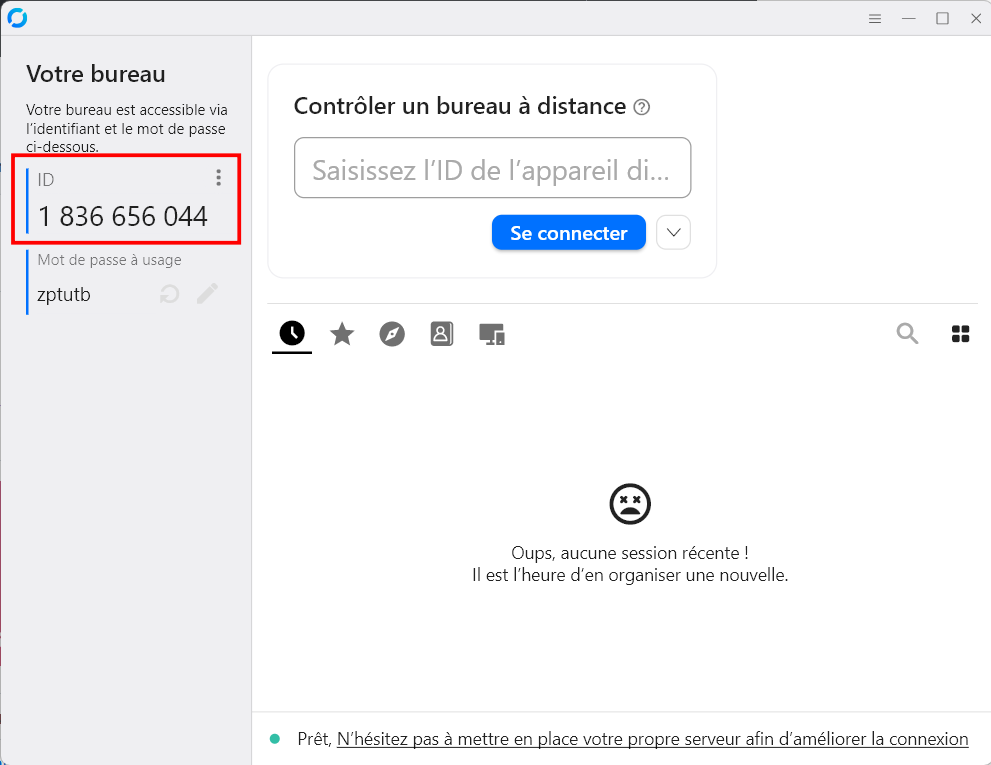
    RustDesk application screen with the ID section circled
  3. Do not share the One time password shown below the ID. When the support engineer tries to connect, a pop-up will appear asking your permission — click Accept.
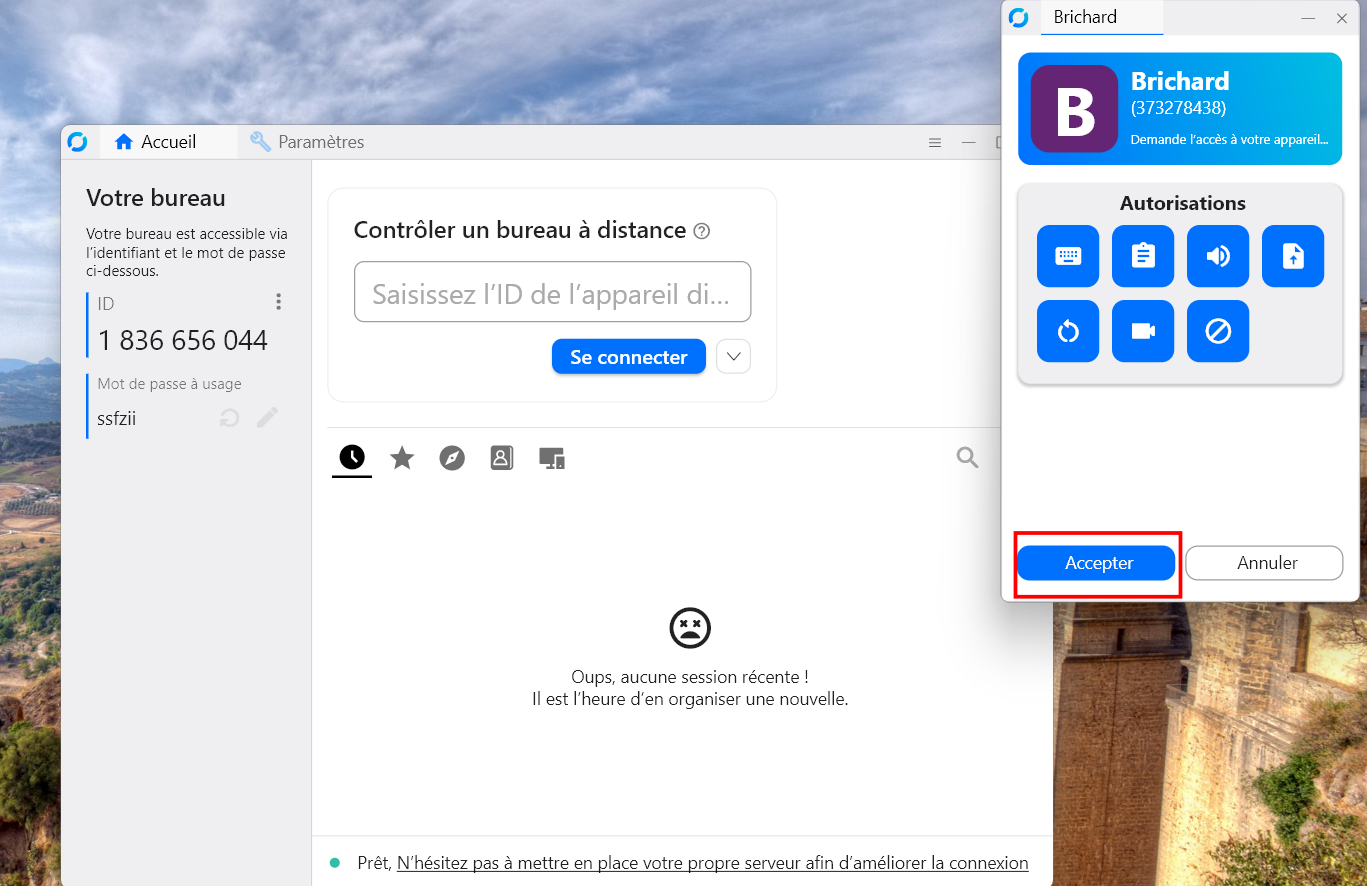
    RustDesk pop-up with the Accept option circled

TeamViewer (Backup)

In case something goes wrong with RustDesk, TeamViewer can be used as a backup option. Download and install the latest version from teamviewer.com/download. Once connected, our support engineer may help you set RustDesk up for future support needs.
Heading 1

Heading 2

Heading 3 1

Heading 4

Heading 5
Heading 6

Lorem ipsum dolor sit amet, consectetur adipiscing elit, sed do eiusmod tempor incididunt ut labore et dolore magna aliqua. Ut enim ad minim veniam, quis nostrud exercitation ullamco laboris nisi ut aliquip ex ea commodo consequat. Duis aute irure dolor in reprehenderit in voluptate velit esse cillum dolore eu fugiat nulla pariatur.

Block quote

Ordered list

  1. Item 1
  2. Item 2
  3. Item 3

Unordered list

  • Item A
  • Item B
  • Item C

Text link

Bold text

Emphasis

Superscript

Subscript

Légende

Frequently Asked Questions

What is One Click Manufacturing?
Equipment
+

One Click Manufacturing automatically launches your manufacturing software as soon as your production files are downloaded. It is provided as a small application to install on your computer.

Learn more: About One Click Manufacturing

Can I use multiple machines or different materials?
Equipment
+

Yes. Circle One automatically generates the files required for your chosen production type (milling or 3D printing). You can work with any milling machine and/or 3D printer, as well as the materials of your choice.

Which manufacturing machines are compatible with Circle One?
Equipment
+

Circle One is compatible with most 3D printers and milling machines, generating files for the main equipment on the market.

You can also automatically open your production files in your manufacturing software using our OneClick Manufacturing module. Learn more: oneclickmanufacturing.circle.dental

Which intraoral scanners are compatible with Circle One?
Equipment
+

Circle One works with all intraoral scanners on the market and supports standard file formats, allowing seamless integration with your existing equipment.

Some devices offer advanced integration for increased efficiency and an even smoother user experience. Check out our “Partners” section

Do I need a powerful computer or specific equipment?
Equipment
+

No. Circle One runs directly in your web browser, no installation required, and all calculations are performed on our servers.

For the best experience, we recommend using Google Chrome.

A standard computer (PC or Mac) with a stable internet connection is enough. Some features may not be available on tablets or mobile devices.

For the exact minimum system requirements, refer to the user manual